Using MLO Creator in FiveM: the studio, live builds without restarts, Collision Cutter, building MLO interiors, furnishing with the MLO Editor, YMAP Creator, occlusion, maps and settings.
MLO Creator is one studio with six tools inside it. Each tool makes one kind of map file, and every one of them ends the same way: a Build that writes real game files and loads them for every player, live, without a server restart. This page walks through the studio, then each tool in the order you are most likely to use them.
Type /mlocreator to open the studio, and the same command again to close it. The command name and an optional key are set in Settings → Studio. Only admins get in; everyone else sees "You do not have permission to open MLO Creator".
FiveM Map Studio panel from Quasar MLO Creator open in-game with all mapping tools listed
The studio shows one card per tool, grouped by what they are for:
Tool
What it does
Writes
Collision Cutter
Opens buildings the game keeps sealed: removes a door, wall or shutter with its collision.
ybn, ydr
MLO Creator
Builds a brand-new interior from nothing: floors, walls, doors, windows, stairs, textures and rooms.
ydr, ybn, ytyp, ymap
MLO Editor
Furnishes an interior: props, working doors, lights, room lighting and entity sets.
ytyp, ydr
YMAP Creator
Places things outdoors: props, fences, parked cars, weather zones, occluders, LOD lights and grass.
ymap
Occlusion
Removes vanilla occluders that hide your build, or authors new ones. Experimental, off by default.
ymap (XML)
Maps
The Map Manager: builds, stops, removes and deletes the interiors you made.
—
Not sure where to begin? The Where to start board on the studio's home suggests three routes, each a chain of tools with a counter of what you have already made:
Tools that work in the world keep their panel docked on screen while you fly around. Press ALT to switch between the mouse cursor on the panel and free look in the world. A short notice tells you which one is active. The key is set in Settings → Studio, and players can also rebind it in FiveM's own key bindings as "MLO Creator — Toggle UI cursor".
Everything you make is a project, saved in the database with who saved it and where in the world it stands. Close the game, come back tomorrow, open it and carry on. Each tool's start screen lists its projects nearest first, and the Go there button teleports you to a project without opening it.
Only one person can edit a project at a time; a second admin who opens it gets a warning. Projects survive every update of the script, as long as you keep the database, [maps] and qs-mlocreator-data.
Pressing Build and load in any tool turns your project into a real map resource and loads it for every player on the server. No CodeWalker, no file copying and no restart. Each project becomes its own resource named qs_mlo_<project name> inside [mlocreator]/[maps].
FiveM MLO Creator building a new interior live in the world with no server restart required
What every player sees during a build:
The screen fades
Everyone online is frozen and moved to a safe spot far away while the files are written. This is normal.
Press E
A prompt says "Your confirmation is needed". Each player presses E so the game reloads its streaming; only a real key press can do that. Sometimes it asks a second time — that keeps traffic and pedestrians spawning around you.
Back where you were
Everyone is put back exactly where they stood, with their clothes reloaded through your appearance script, and the new map is there.
A few rules keep a build safe. Only one build runs at a time. Players who try to connect during a build are asked to reconnect in a moment. When more than two other players are online, the builder is asked to confirm first ("This build reaches everyone on the server") — the threshold is Settings → Build & maps.
Every build dialog also has a Files only — skip the live reload checkbox. It writes the map to disk without touching anyone, and the map loads with the next server restart. Use it on a busy server.
Do not restart the server or disconnect during a build. And never edit files inside [maps] by hand: the next build rewrites them. Change the project in game instead.
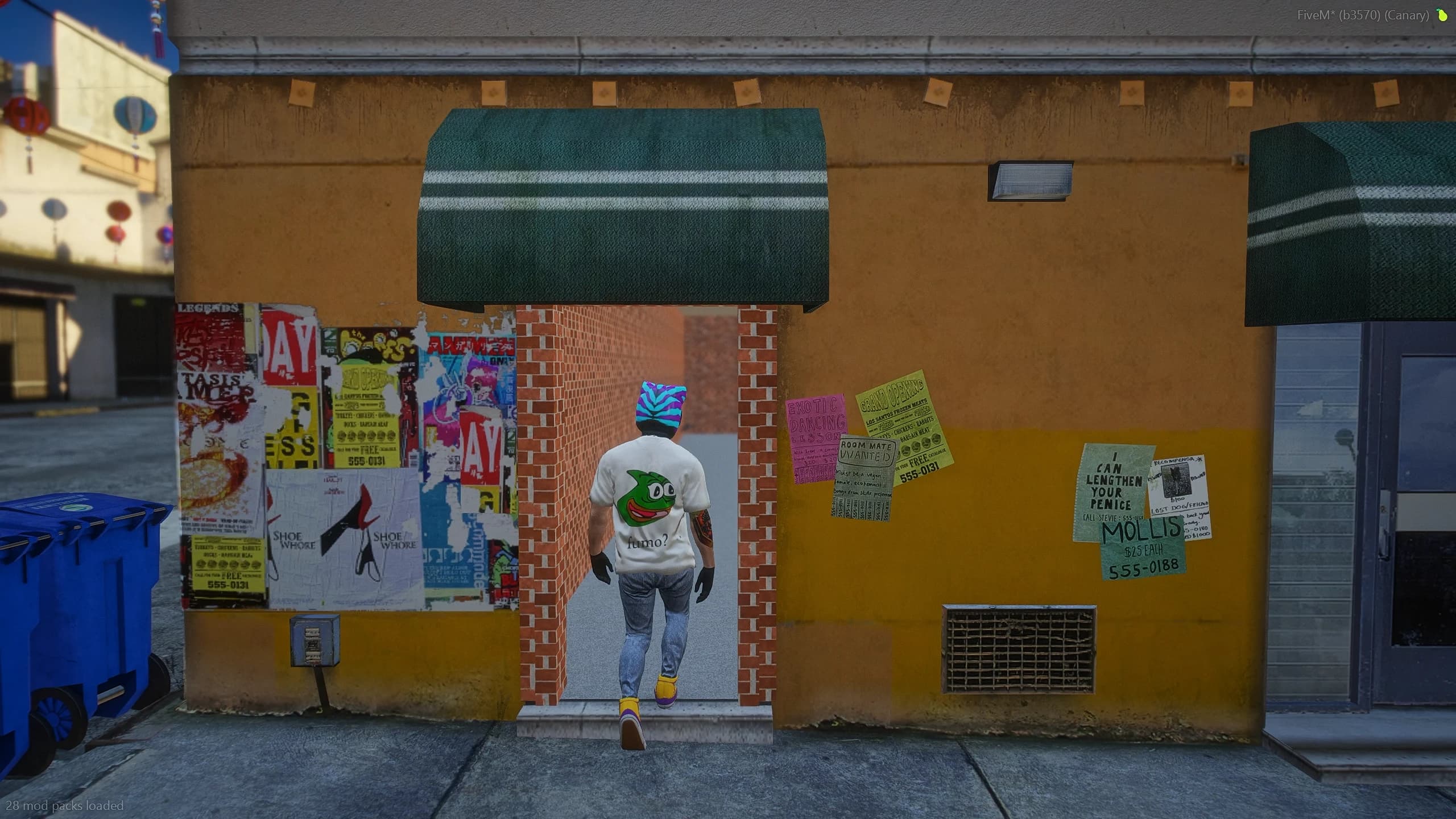
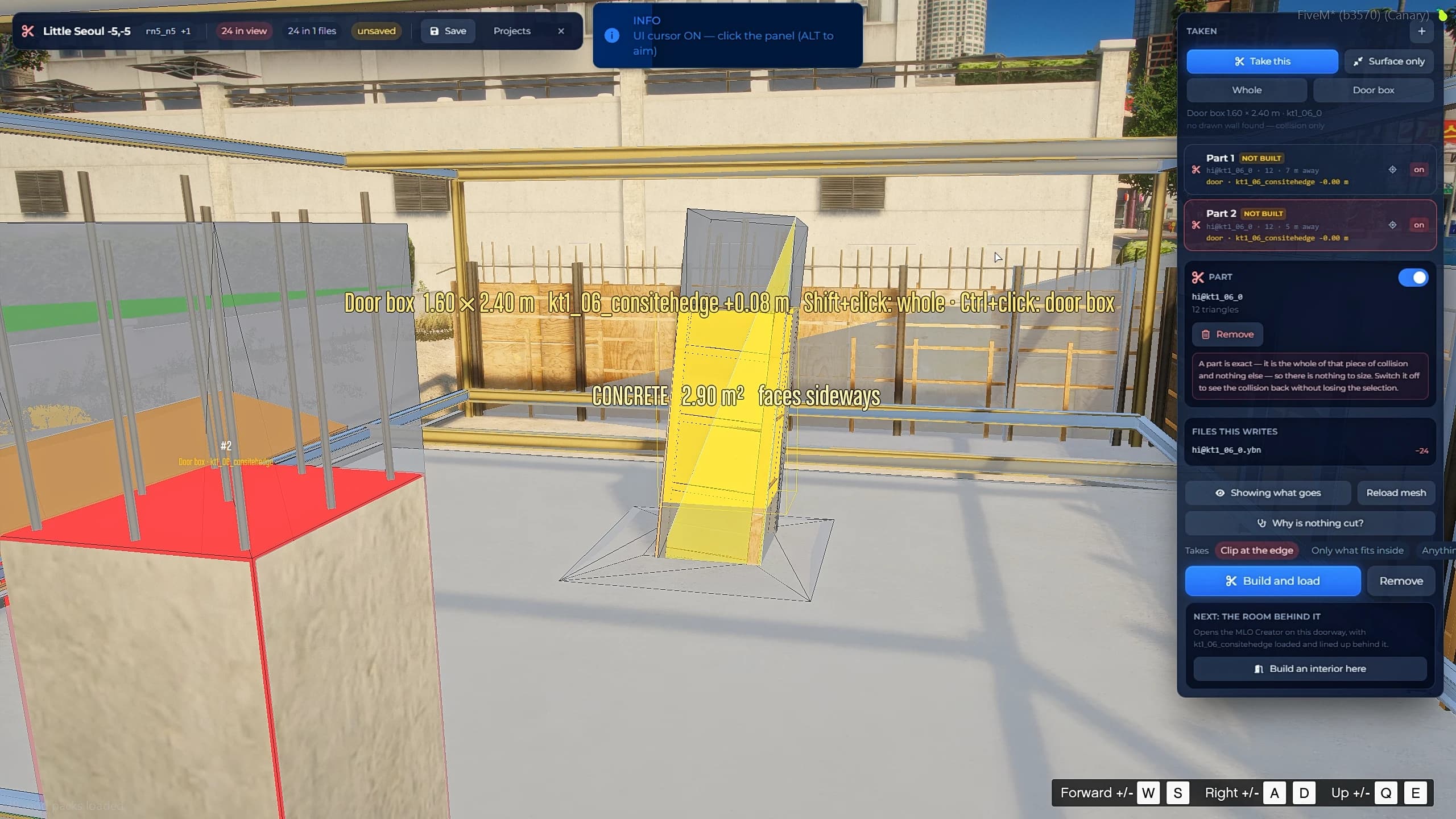
The Collision Cutter opens buildings the game keeps closed, so a player can walk through a real door into an interior you build behind it. It never edits GTA's files: it streams replacement collision with the same names. Delete the cut and build again, and the original building comes back.
FiveM Collision Cutter highlighting a sealed building door in yellow before cutting it open
Stand in front of the building
Open the tool. The start screen shows "Where you are standing" with Cut here or Carry on here.
Look at the door
The part under your crosshair lights up yellow.
Take it
Left click turns it red. Click again to put it back.
Build and load
The door, its collision and its visible model are gone for everyone. Walk through.
Key
Does
Left click
Take / put back the highlighted part
Shift + click
Take the whole part
Ctrl + click
Fit a door-sized box at the crosshair
G
Corners mode
Arrow keys
Nudge the selected box (hold Ctrl to resize instead)
Some buildings are modelled as one piece, so the whole wall highlights instead of the door. Press Ctrl + click to fit a door-sized box (1.6 × 1.6 × 2.4 m by default), or use Corners mode (G): click two opposite corners of the opening, right click undoes a corner, Enter fills and takes it. Only the box is cut, never the rest of the wall.
The selected box can be resized, turned, fitted to the surface or stood on the ground from the panel. How much a box takes is set by Takes: clip at the edge (default), only what fits inside, or anything it touches. Toggle between "Showing what goes" and "Showing the result" to check before you build, and press Why is nothing cut? if a box does not seem to do anything.
The world is divided into 200 m cells, and each cell belongs to one cut project. A cut just over a cell edge joins the project; a cut far away is refused with "That is not this project's ground". Open the tool where you stand and it picks the right project for you.
Once a doorway is cut, press Next: the room behind it → Build an interior here. The MLO Creator opens already lined up on that doorway, with the vanilla building shown as a reference to trace against.
The cutter reads the real game collision from a collision server. The default one, hosted by Quasar, works out of the box. See Integrations.
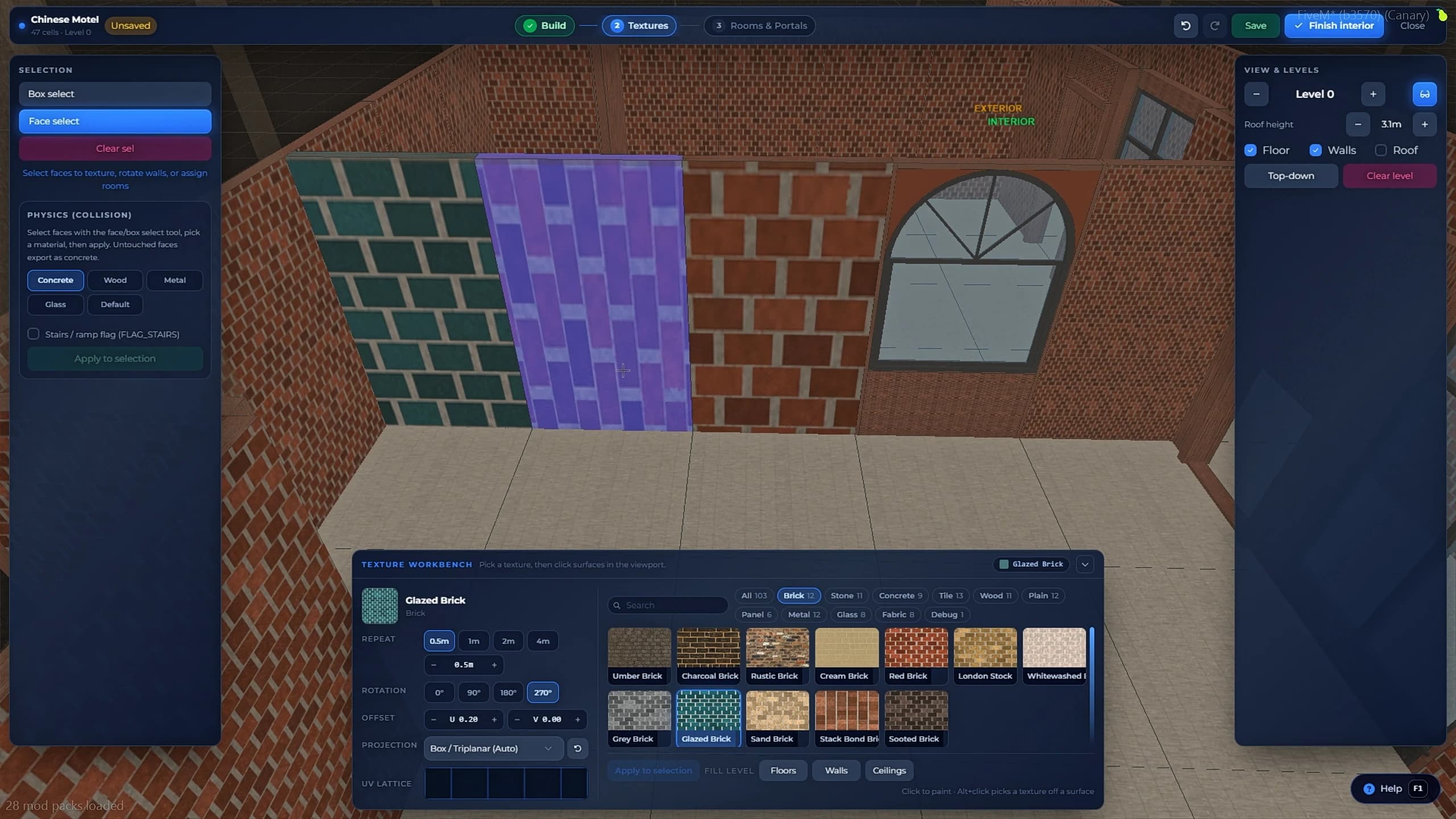
The MLO Creator builds a brand-new interior where there was none. You place an entrance door on a wall, paint floors on a grid, and walls rise on their own. Then you texture it, sort it into rooms and press Finish interior.
FiveM MLO Creator painting an interior floor while the walls generate automatically in-game
Create a project and give it a name. You start in the free camera: whatever you look at is read as a doorway — an existing door prop, a doorway the collision server knows, a plain wall, or the ground — and a ghost door shows the reading. Left click locks it and lets you adjust it; Enter locks it and goes straight to the grid.
Key
Does
← →
Slide the door along the wall
↑ ↓
Move it in / out through the wall
Page Up / Page Down
Raise / lower the floor
Mouse wheel
Door width
Z / X
Door height up / down
Shift (held)
1 cm steps instead of 10 cm
R
Swap inside and outside
G / M
Gizmo on / off, cycle gizmo mode
Enter / Backspace
Continue to the grid / back to aiming
Place the door on a real outside wall. A door can be 0.5–12 m wide and 1–10 m tall; wider doors span several grid cells.
The grid works in 2 m cells, and the step bar at the top takes you through four stages:
Step
What you do there
Build
Paint floors, walls, ceilings, doors, windows and stairs. Add levels for upper floors and basements.
Textures
Give every face a texture and a physical material.
Decorate
Baseboards, crown moulding, wainscoting, niches with shelves, thresholds and drop ceilings, on one surface or a whole room. A drop ceiling can carry an LED cove or a glow panel that becomes a real light on build.
Rooms & Portals
Split the interior into rooms, set each room's lighting and check that every room reaches the outside.
Click or drag on the grid. Border walls are created automatically on every open edge.
Wall / Half / Draw wall
Click a cell edge to raise a wall; Half makes a counter or parapet.
Ceiling
Click any cell to cover it.
Door
Click a wall and it becomes a doorway. The opening becomes a portal; the openable door itself is placed later in the MLO Editor.
Window
Click a wall. Styles: Standard, Wide, Tall, Strip, Arched, Grid, Sash, Shopfront and Plain hole, with size, sill, rows, columns, frame and glass.
Stairs
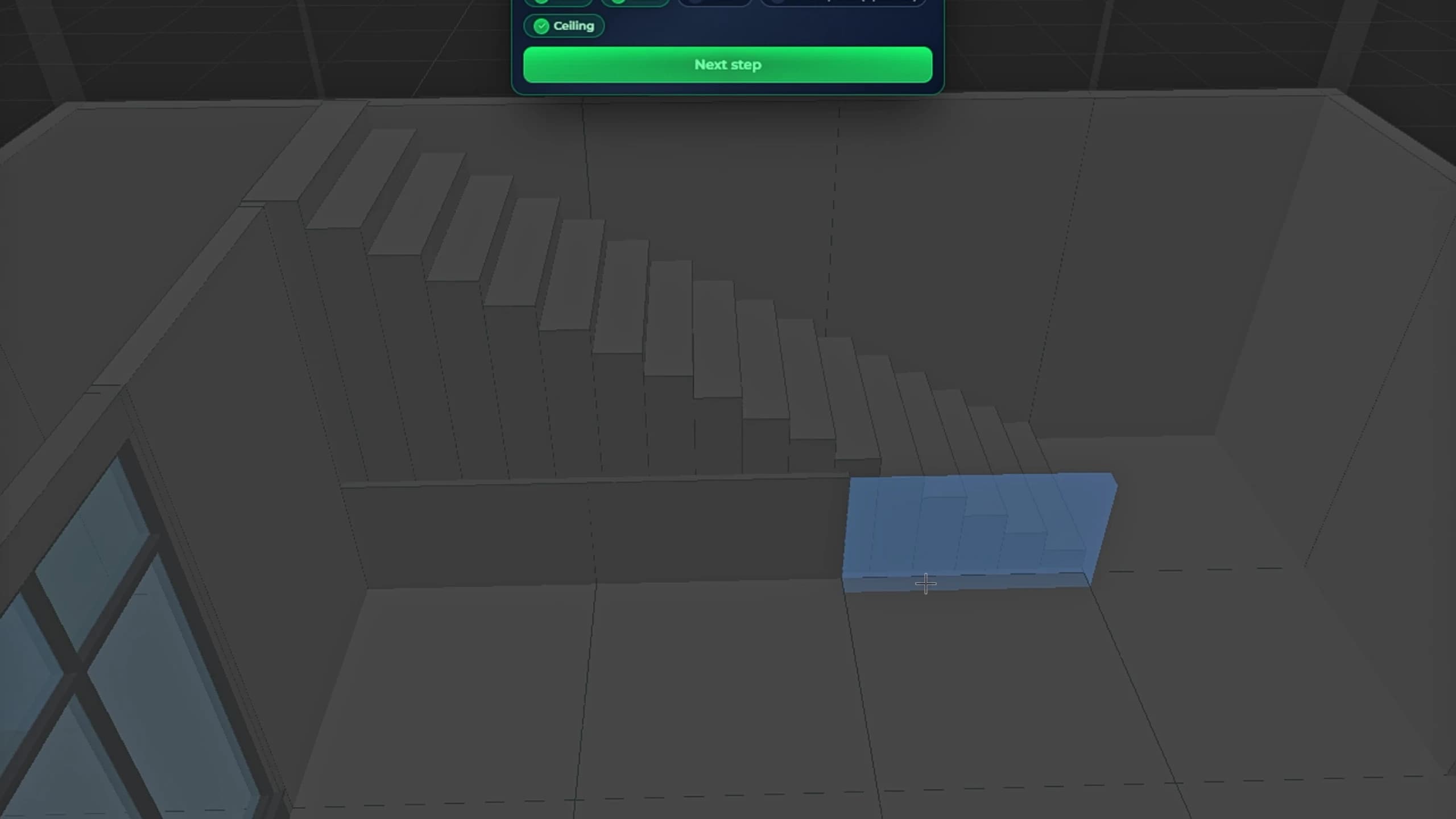
Click a cell and pick a direction; the flight climbs to the next level. Step count, width and style are adjustable.
Split / Slice
Put an interior wall through a floor.
Bend / Radial / Round corner
Curved walls, round rooms and rounded corners.
Corner / Height / Stretch
Move a corner, change a level's height or stretch the shape.
Eraser
Click whatever you want to remove.
Under Advanced you will find wings (paint into separate parts and lock or hide the rest) and the exterior reference: pick the building around you from the world, and it shows as a see-through facade to trace against. It is a reference only; nothing of it is baked into your interior.
Textures come from the qs_mlotextures pack: over a hundred textures in Brick, Stone, Concrete, Tile, Wood, Plain, Panel, Metal, Glass and Fabric. Pick one, then click faces to paint them, or select faces first and press Apply to selection. Fill level paints every floor, wall or ceiling on a level in one click, Alt + click picks the texture off a surface, and eight brush slots keep your favourites at hand. The Physics tab sets what each surface is made of — concrete, wood, metal or glass — so footsteps and bullet impacts sound right.
Every walled-off area is a room. Pick a room and click a floor: the whole area is painted with it (Shift + click paints a single cell). Doors, windows, half walls and stairs between two rooms, or to the outside, become portals automatically. Each room has a timecycle — its lighting look, searchable among a thousand — plus flags and how far the outside stays visible through it.
Ten room presets (Office, Garage, Warehouse, Shop, Nightclub, Basement, Apartment, Stairwell, Car park, Lobby) and nine portal presets (Door, Garage door, Open doorway, Shop window, Glass partition, Mirror, Mirror floor, Link to another interior, Water surface) fill in the right values for you. Save your own under a name to reuse them.
Press Finish interior, then Build & load. The grid is baked into real mesh, portals are written from your doors, the project is saved and the map is built live. A few things stop a build until you fix them — the dialog's Show me button takes you there:
Limit
Value
Rooms per interior
31 (32 counting the game's own limbo room)
Different textures
128 (warning from 112)
Exit to the outside
At least one, and every room must be reachable
Triangles
Warning above 20,000 (adjustable)
Undo history
40 steps by default (Ctrl + Z / Ctrl + Y)
Save often. The MLO Creator has no timed autosave: it saves when you press Save and right before every build, and closing warns that unsaved changes may be lost. Rebuilding an interior later keeps everything the MLO Editor added to it — doors, props and lights are put back automatically.
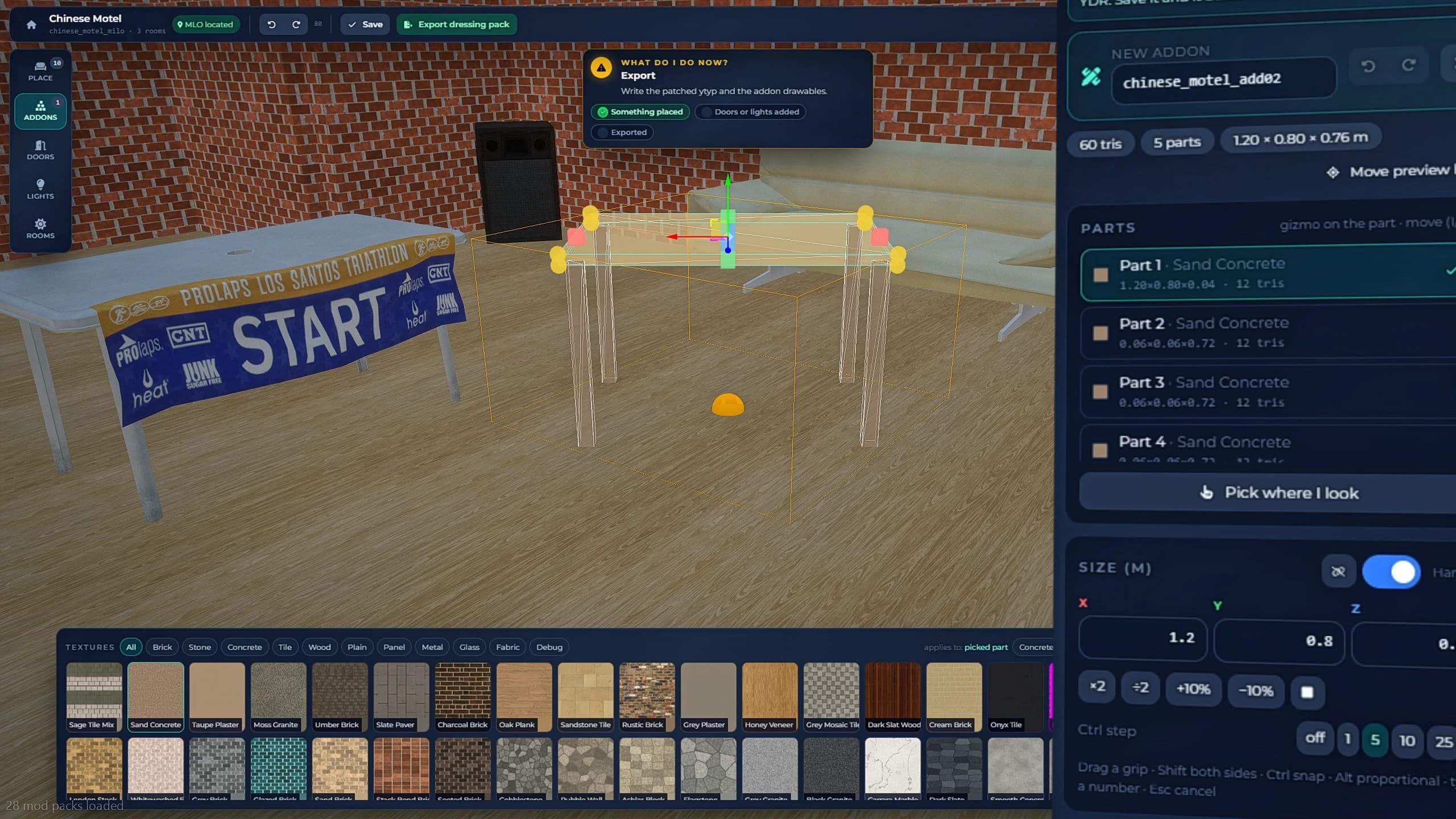
The MLO Editor furnishes an interior without touching its walls: props from the catalogue, custom models, small addon meshes, working doors, lights, per-room lighting and entity sets. It works on interiors you made with the MLO Creator or on any MLO you have as a .ytyp. The original is never changed — delete the dressing and the interior is back the way it was.
FiveM MLO Editor placing and rotating props inside an existing interior using the gizmo
Start tab
Use it to
Your MLOs
Dress an interior from the MLO Creator, or continue its dressing.
Editor projects
Load, visit or delete saved dressings.
From ytyp file
Drop a binary .ytyp or a .ytyp.xml of any other MLO and dress that.
Walk or fly into the interior. The editor finds it on its own ("MLO located — you are inside it") and keeps your work lined up with it. A coach card on screen follows you through the four stages: pick a base, anchor it, dress it, export.
Props from the furniture catalogue (Kitchen, Bathroom, Bedroom, Living, Garden, with favourites and recents) or any model by name. Each prop has its room, entity set and LOD distance.
Addons
Build small custom meshes from primitives (box, panel, cylinder, tube, wedge, steps, frame…), presets (crate, counter, table, shelf, bench…), a text sign or an imported .ydr.xml.
Doors
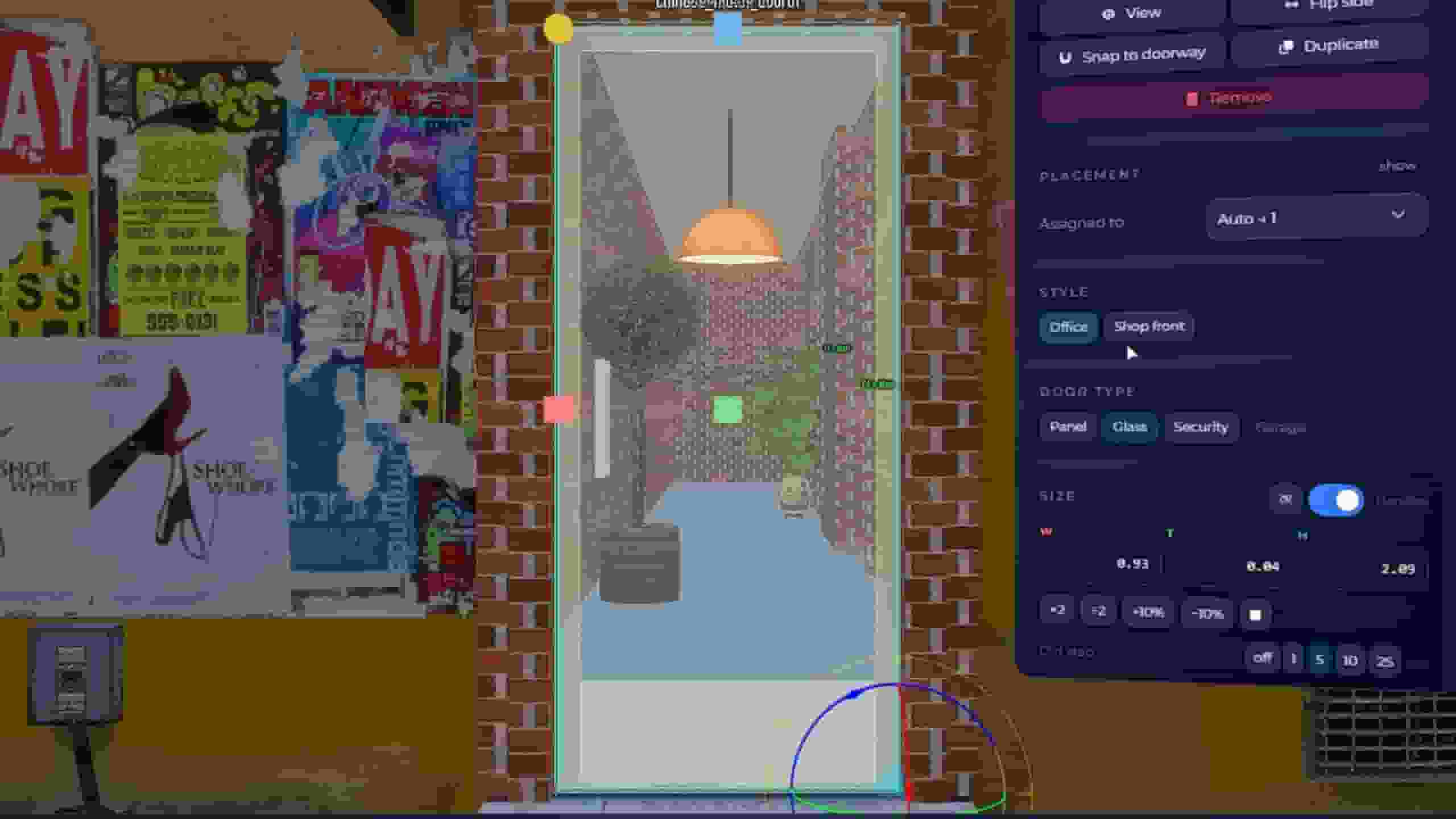
Look at a doorway and a working door is sized to it. Panel, glass, double, security or garage, swinging, sliding, tilting or rolling.
Lights
Point, spot and capsule lights with ready looks (pendant, downlight, neon, fire, disco, exit sign…), flicker effects, shadows and active hours.
Rooms
Locate the interior, give each room its own timecycle with a live preview, and see the portal map.
Gizmo ↔ drag (drag: hold left click, Z / X rotate)
1 / 2 / 3 / 4
Move / rotate / scale / size handles
G
Drop onto the surface below
L
In Lights mode: arm click-to-place (Shift + click keeps placing)
Ctrl + D / Delete
Duplicate / delete the selection
Ctrl + Z / Ctrl + Y
Undo / redo (80 steps)
Ctrl + S
Save
The snap menu in the top bar sets move snap (0.05–1 m) and rotate snap (5–90°). With size handles, drag a grip to resize; Shift moves both sides, Ctrl snaps and Alt keeps proportions.
Every door gets its look, an opening angle, a trigger distance, a locked or unlocked start, hold-open and spring options. On build, a small doors.lua is written into the map resource that registers each door with the game's door system, named after the project — <project>_door01, <project>_door02 and so on — so your door lock script can address them (see Integrations). The Empty openings tab fills every empty doorway in one click.
Create a set, put props in it, and they only appear while the set is active — the same mechanism GTA uses for upgrades and renovations, ready for your own scripts to switch on. Doors cannot be in a set.
Press Export dressing pack, then Build and load. For an MLO Creator interior, the dressing goes into that interior's own map resource — build the interior once in the MLO Creator first. For an MLO you loaded from a file, a separate qs_mlo_dress_<name> resource streams the dressed copy over the original. The editor saves on close and before every export.
Every prop must belong to a room. Props outside any room land in limbo and are not drawn — the export warns you how many.
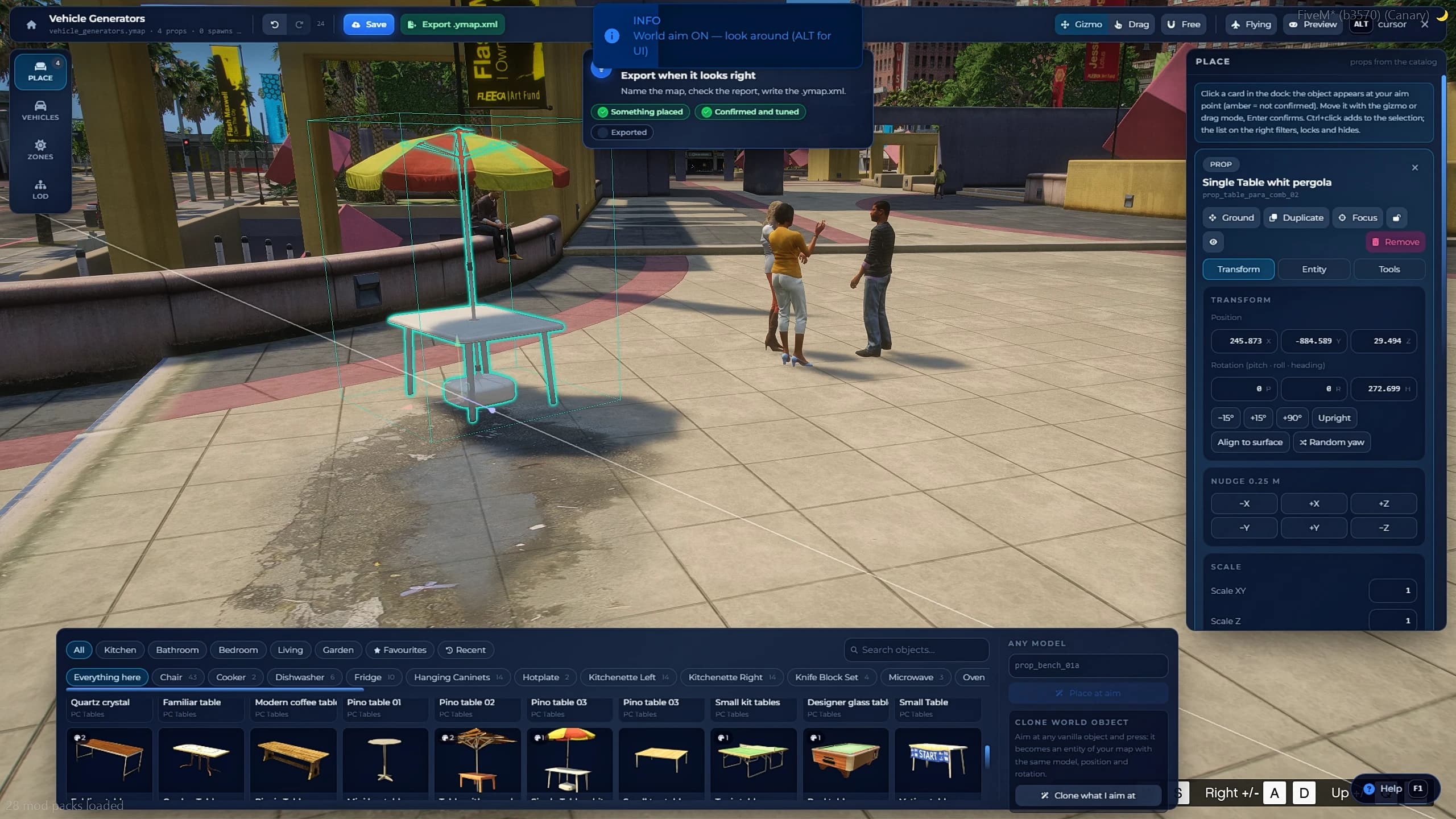
The YMAP Creator places things outdoors, in the open world. Start a New map and fly out, reopen one of Your maps, or drop a CodeWalker .ymap.xml into From ymap file to edit an existing map (keeping its name replaces the original).
FiveM Ymap Creator placing props, parked vehicles and a weather zone outdoors using the free camera
Pick a mode on the left rail and click a card in the bottom dock: it lands where you aim. A new prop shows amber and "Not confirmed" until you press Enter. Every dock works the same way: the first tab lists what you placed (click to select, double-click to fly there), the second is what you can add.
Place — props
Props from the catalogue, any model by name, or Clone world object to copy a vanilla object you aim at. Each prop has position, rotation and scale; LOD distance, LOD level and priority; entity flags; and tools to array, scatter (up to 200) and mirror. Keep priority on Required: in multiplayer the game skips optional props unless they are flagged fixed, and the tool warns you.
The Extensions tab can add a door (how a door prop swings and locks), lights fixed to the prop, or a scenario spawn point override.
Fences
Pick a family — chain-link, security, wooden, iron railing, picket, plywood and more — press Draw fence and click each corner. Every stretch fills with panels at once, following the slope. Backspace takes back a corner, Enter finishes. Gates and corner posts are options, and any panel can later be replaced with a gate. Families are listed in config/fences.lua.
Vehicles — parked cars
Place a parked-car spawn with a ghost car showing where it stands: model, heading, colours, livery and spawn flags. After the build the game spawns the car the way it spawns every parked car: never while you are looking at the spot, never closer than about 50 m, only with the normal game camera, and only when approached from further than about 250 m. Standing on the spot shows nothing — leave and come back.
Zones — timecycle boxes
Draw a box and give it a timecycle (a weather or lighting look), strength, blend range and hours. Fly into it to preview the look live.
LOD — far-away versions
Select a prop, press Use selection as parent, then Ctrl + click its children. Yellow lines show the links; LOD levels are set automatically on export.
Occlusion — occluders
Boxes and drawn prisms the game treats as solid walls: nothing behind them is drawn, which keeps a big custom building cheap. Place a box at your aim, wrap an object, or draw a prism corner by corner. Only use them on things you cannot see through — the game hides everything behind an occluder, glass included.
Lights — LOD lights
The lights the map shows from far away (150, 450 or 1250 m, set on the map). Pick a look — street lamp, wall lamp, floodlight, lit window, neon, sign, strip, beacon — and it lands on the surface you aim at. The game only shows them from 19:00 to 07:00 game time, and up close it shows the prop's own lights instead.
Grass
Pick one of 48 grass types, turn Paint on and hold left click over the ground. Radius, density, scale and tint are on the brush; Erase removes it.
Key
Does
Ctrl + click / Ctrl + A
Add to the selection / select every prop
Ctrl + C / Ctrl + V
Copy / paste at your aim, keeping the layout
M, 1 2 3, G
Gizmo ↔ drag, move / rotate / scale, drop to the ground
Ctrl + D / Delete
Duplicate / remove
Ctrl + Z / Ctrl + Y / Ctrl + S
Undo / redo (80 steps) / save
The map settings in the top bar hold the map name, a parent ymap, the owner and the LOD light range. When you are done, press Export, then Build and load. An empty map, a missing name or an unknown model blocks the build; the rest are warnings.
GTA hides whatever stands behind its own invisible occluders. When you build something where the base game had none, those occluders can make it flicker or vanish. This tool finds them and removes them, from a database of every vanilla occluder that ships with the script.
Mark the area
Click corners on the ground, or use a square or circle around you. Set the height range if needed.
Scan the area
Every vanilla occluder touching it is listed and shown in red, flagged for removal.
Review
Keep or remove each one. In Author mode you can also add your own boxes.
Export
The patched occlusion files are written to qs-mlocreator-data/exports/occlusion/<name>/ with a README. This tool does not build live: stream those files from a map resource of your own.
The Maps tool lists every interior made with the MLO Creator and whether it is loaded ("Never built", "Built, not loaded", "Loaded", "Building…"). YMAP and cutter maps are managed from their own tools.
Button
What it does
Build / Rebuild
Builds the map live again, for example after you changed the project.
Stop
Takes the map out of the world for everyone but keeps its files. Build starts it again.
Remove
Takes it out of the world and deletes its resource folder. The original building comes back; the project stays and can be built again.
Delete project
Removes the map, the project, its exports and its dressings. Cannot be undone.
Refresh interior
Reloads the interior you are standing in.
Stop and Remove are builds too: everyone goes through the same short fade and presses E.
Matrix is Quasar's shared library of maps, built into the studio. Publish a building, an interior or a ymap on quasar-store.com, or install one that another server made. A map from Matrix lands exactly where its author built it (the GTA map is the same on every server), so installing asks no questions: you open it in its tool and press Build.
Open it from the studio: /mlocreator → Matrix. Anyone who can open the studio can open Matrix; what they can do there depends on their Matrix role (below). The tool can be hidden from the studio in the Settings.
Kind
Made in
What travels with it
Building
Architect
The building and every interior made for it.
Interior
MLO Creator
Rooms, doors, windows, the baked mesh and custom textures, plus the doors, props and lights added in the MLO Editor.
Ymap
YMAP Creator
Props, parked cars and custom props, where they were placed.
Matrix has four tabs:
Tab
What it is for
Explore
Browse and search what others shared. Filter by Buildings, Interiors or Ymaps and sort by Popular, New, Top rated or Updated.
Library
Everything made on this server: what is live on Matrix, what is waiting for review and what is not shared yet. You publish and manage your maps here.
Installed
The maps this server installed from Matrix, and whether their authors have published a newer version.
Server
The server's link to Matrix and the staff who can install and publish.
Installing and publishing go through the server's link to Matrix. You do this once:
Link this server
In the Server tab press Link this server. Open the address it shows on quasar-store.com and enter the code. Whoever links the server becomes its owner.
Link each person of the staff
Each person opens Matrix in game, presses Link my account and enters their own code the same way. They join as Member; the owner gives them a role in the Server tab.
One link serves every Quasar script on the server.
Role
Can
Member
Install, rate and report maps.
Publisher
Everything a Member can, plus publish and manage their own maps.
Admin
Everything a Publisher can, plus manage the people below Admin.
Owner
Everything, including unlinking the server and handing it over.
Find it in Explore, or paste its quasar-store.com link (or its id) in Library → Install from a link.
Open it to see its photos, stats, versions and reviews. Set a waypoint marks where it stands on your map.
Press Install. It is added to its tool (the Architect, the MLO Creator or the YMAP Creator) as a project. Nothing is built yet.
Open it in that tool and press Build.
Installed lists everything you installed and marks a copy that was edited or deleted here. Check for updates shows which maps have a newer version from their author.
You need the server linked, your own account linked, and the Publisher role or higher.
Take photos
A new map needs at least one photo and can have up to 4; the first one is the cover. In Library, Take photos opens the project in its tool with the camera ready (the camera button in the top bar of the Architect, the MLO Creator and the YMAP Creator does the same). Frame the view, press Take photo, then Back to Matrix.
Share it
In Library, pick a project marked Not shared and press Share. Give it a title, a one-line summary, a description, tags, a version and who can see it: Public (everyone), Unlisted (anyone with the link) or Private (only you). Matrix checks the project first and warns you when a model comes from another resource.
Wait for the review
Quasar reviews your first 3 versions before they show on Matrix.
Changed the map later? Open it in Library and publish a new version. From the same place you can edit its page, change who can see it, or Remove from Matrix.
Press the gear in the studio header. Every field has its own explanation and a search box finds any of them. A saved change reaches every player at once and is stored in the database, so updates never wipe it.
Page
What it holds
General
Language (41 available), debug output, sounds, number format.
Studio
The command (default mlocreator), an open key, docked panels and the cursor key (default ALT).
Tools
Turn each tool on or off, and whether its panel docks in game.
Camera & gizmo
Free camera speeds and sensitivity, orbit camera, gizmo steps.
One page per tool
MLO Creator, MLO Editor, YMAP, Occlusion, Collision viewer and cutter: steps, defaults, limits, warnings and the collision server.
Build & maps
Map resource prefix (default qs_mlo_) and folder, the flush key (default E), where players wait during a build, and from how many players a build asks to confirm.
Only the command, the open key, the cursor key and the flush key need restart qs-mlocreator. The panel says so when you change one. Reset section and Reset everything put the defaults back.