Quasar Tutorial Creator is a cinematic you build in game instead of in a config file. New players spawn, the screen fades, and the camera flies them around your city while a narrator talks over it.
Type /tutorialcreator and you get a photoshop-style editor for the whole thing — fly to a shot, press ENTER, and that camera is now step four.
The default. A six-stop tour: a portrait per step, narration over a bottom scrim, letterbox, click to advance
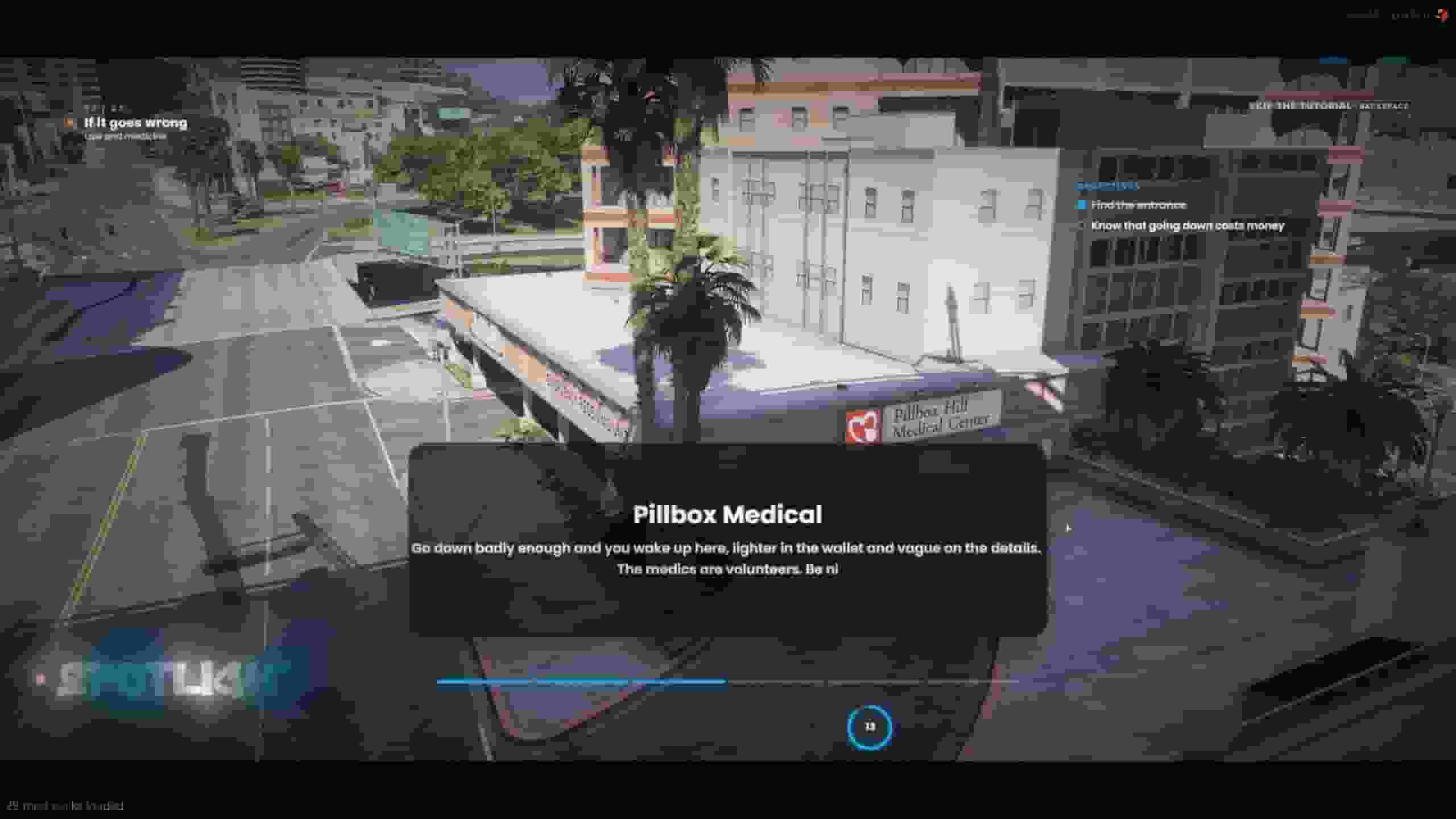
Spotlight
Hands off. A centred card, a live countdown on every step and an objective list beside it. Every step advances on its own
Skyline
No buttons, no portraits, no hurry. Five landmarks at golden hour and a hairline progress bar. Runs itself end to end
Anthem
Built around a track. Background music is on out of the box and every step runs on a timer, so the cuts land with the song
Broadcast
A video plays beside the narration the whole way through, framed like a feed on a studio wall
Noir
Rain, brass and a narrator. Twelve percent letterbox, desaturated timecycles, film grain. Night and early morning throughout
Neon
The city after dark. Magenta and cyan, scanlines, a countdown ring. Every shot forces the clock to the small hours
Dispatch
A briefing, not a tour. Monospaced amber in a framed HUD, a task list per stop. Meant to be fired from a job script rather than on spawn
They are starting points. Duplicate one and it is yours — all eight were built with the same creator you have.
The coordinates in them are real Los Santos landmarks, but they were written rather than captured, so a shot may be framed a few metres off on your build. Fly there shows you in one click, and Capture from game fixes it in one more.
Every layout is checked to keep its buttons, text and progress inside the letterbox bars and off each other. If you move things around, leave the bar height clear at the top and bottom.
Open /tutorialcreator and it asks what you want to work on: the eight that ship, anything you have already saved, or nothing at all. Pick one and you land on step 1 of 3.
1 · Steps — The Script
Add a step, name it, write what the player reads, then hit Capture from game: the creator gets out of the way, you fly to the shot you want and press ENTER.
That is the whole camera workflow. Repeat per stop.
Chapters are optional and only group steps under a heading.
2 · Design — Where It Sits On Screen
The elements are already laid out for you. Drag them, restyle them, add more from the library.
Nothing here is required to ship a working tutorial.
3 · Settings — How It Behaves
Play on spawn, once per character, skippable, background music, fade timings.
Then Save and Set live.
The Bar Under The Tabs
It is the same on every tab, so nothing is ever a tab away:
Button
What it does
Tutorials
Back to the picker, warning you first if you have unsaved work
The checklist
Steps, cameras, a way to advance, saved, live — turns green as you go, and each amber chip jumps to the tab that fixes it
</>
The exports and events for this exact tutorial, with its id already filled in, ready to copy
A step is one shot: one camera, one line of narration, one button.
A chapter groups steps and gives them a name and an icon. A tutorial with one chapter is fine; so is one with none.
Images are not part of a step. They live on the elements that draw them, so a per-step portrait is one Portrait element per step, each scoped to its own.
Shows On
Every element on the Design canvas answers Shows on, in the inspector:
Scope
For
Every step
A letterbox, a progress bar, a skip button
A chapter
Something that belongs to one act
A step
A video that only plays during the airport shot
That is what lets one tutorial hold a talking-head intro, a map-heavy middle and a quiet closing shot without every element fighting over the same 1920 × 1080.
How A Step Ends
Trigger
What it is
The player clicks
The Continue element, or its keyboard shortcut
After a while
A timer, which the Timer element can draw as a ring
Either one
Whichever happens first
The continue button appears after Button appears after, per step — which is what stops a player skipping past a line before they have read it.
This is the part you cannot do in a config file, so it is the part the creator is built around.
Capturing A Shot
Hit Capture from game and the creator gets out of the way. You are in a free camera:
Control
What it does
WASD
Fly
SPACE / CTRL
Up and down
SHIFT
Faster
ALT
Crawl
Scroll wheel
Field of view
ENTER
Save the shot into the step you were editing
BACKSPACE
Throw it away
Either way the creator comes straight back.
Flying To A Shot
Fly there does the reverse — it puts the game camera on a shot you already have.
A small bar appears at the bottom with the step name and arrows, so you can walk the whole tutorial shot by shot and watch each camera do its move, full screen, without playing anything.
Seeing Your Work
Three buttons, three different questions:
Button
Where
What it answers
Preview
Top right
The overlay only, on black, with arrows to step through. For text, layout and typewriter timing. No game camera
Fly there
Steps tab
The real game camera for one shot, full screen. For framing, movement and atmosphere. No overlay
Play in game
Design tab
Everything at once, for real — fades, cameras, music, buttons, progress. The rehearsal
Play in game hands the draft straight to the client without saving it first, and forces it to run even if you have already watched that tutorial.
The Six Movements
Movement
What it does
Static
It sits there
Pan
The camera stays put and turns — capture the start, capture the end
Dolly
It moves and turns from one captured shot to another
Track a point
It moves from A to B while always looking at a third point — the shot that makes a building read as the subject
Orbit
It circles a captured point at a radius, a height and a speed
Follow the player
It rides behind the character at an offset. Good for the last step
Move time and Easing control the interpolation — sine in and out is the cinematic default, linear is the one that looks like a script. Go back and forth loops the move rather than holding on the last frame.
Everything Else On A Shot
Setting
What it does
Camera shake
GTA's own shake set, from a barely-there hand to explosion. A completely still camera reads as a screenshot — a little hand is usually what you want
Depth of field
Near, far and strength
Arrive with
A cut, a fade, or a blend, which interpolates from the previous shot. Blend between two nearby shots and it reads as one continuous move
Atmosphere
A timecycle modifier, a weather override and a forced time of day, all per step. Empty means "leave the world alone", and everything overridden is restored when the tutorial ends
Streaming
The world is streamed at the camera, not by teleporting the player around.
That is why the buildings are already there when the shot fades in and why the player never ends up somewhere they did not ask to be.
Everything on screen is an element. Add them from the library, drag them where you want, set their properties in the inspector.
Group
Elements
Basics
text, image, shape, icon, effect
Story
narration, portrait, chapter card, objectives
Flow
continue, skip, progress, timer, letterbox
Media
video, slideshow
What Each One Does
Element
What it draws
Narration
The speaker, title and body of the current step, with a typewriter that respects the step change. The heart of the thing
Portrait
An image with the shake the step asks for and an optional idle float. One Portrait per step, scoped with Shows on, for a different portrait each time
Chapter card
The chapter's name, subtitle, icon and number. Inline, card or badge
Objectives
The step's objective list, ticking off the ones behind you
Continue
Takes its label from the step by default. Runs any action, has a keyboard shortcut and its own appear delay
Skip
Hold to skip, with the hold drawn as a fill. Hidden in game when the tutorial does not allow skipping
Progress
Dots, a bar, segments or numbers — the whole tutorial or the current chapter
Timer
A ring, bar or digits counting down a timed step. Draws nothing on a step that waits for a click
Letterbox
The two black bars, which slide in on the first frame
The text element binds to live values: the step title, chapter name, step number, server name, the player's job, the zone they are standing in, the clock. Pick a source in the inspector and it updates itself.
It takes a YouTube link. Paste a full URL, a youtu.be link, a Shorts link or just the eleven-character id.
It is embedded hidden, so only the sound comes through, and it plays for as long as the tutorial is on screen.
Any step can override it with its own track under Sound for this step — which is how you give the nightclub shot different music from the hospital.
Local files work too — drop an OGG or MP3 into audio/ and it appears as a dropdown.
Video
The same YouTube link, or a WebM out of videos/.
A YouTube video keeps playing while its step is on screen and stops when the step changes. Set it to cover and it fills the element whatever shape you made it.
Both go through the YouTube IFrame API so the volume slider actually does something. If the API cannot be reached, it falls back to a plain embed rather than showing nothing.
Three folders belong to you rather than to this resource:
Folder
For
images/
Portraits, logos, slides
videos/
Clips (WebM only)
audio/
Music and stings
Anything you drop in shows up as a dropdown in the creator — but the URL field is still there, and a CDN link works fine. The seven portraits from the original script are already in images/.
Everything in these folders is downloaded by every player on join. That is the one place where a nice tutorial turns into a slow connect — keep files sized for what they are, and prefer a YouTube link over a bundled video when the clip is long.
Video must be WebM (VP9). FiveM's browser ships without the H.264 licence, so an .mp4decodes to a black screen.
Whether somebody has already watched the tutorial lives in qs_tutorial_progress, against the character identifier — not in the browser's localStorage, which the old version used and which a player could clear by reinstalling FiveM.
Control
What it does
Only once per character
The Settings switch that enforces it
/resettutorial
Lets a player replay it
Reset everybody's progress
Makes the whole server watch it again on their next spawn
There is no confirmation on that button, because it is not destructive — it only forgets.
Config.Tutorial.autoStart waits for the session, then the framework, then the character and spawn screens to close, then Config.Tutorial.autoStartDelay — and plays the live tutorial if this character has not seen it.
QBCore
Stock qb-multicharacter / qb-multichar + qb-spawn are hooked automatically. The tutorial will not start while the character picker or spawn selector is on screen, so the two UIs cannot overlap.
If you use a fork that does not fire the usual events, tell the tutorial when those screens are open:
lua
-- when the character or spawn UI opens
exports['qs-tutorial']:SetSpawnBusy(true)

-- after they have spawned into the world
exports['qs-tutorial']:SetSpawnBusy(false)
From Your Spawn Script
StartTutorial blocks until the tutorial finishes and returns whether it completed:
lua
if exports['qs-tutorial']:StartTutorial() then-- they watched itend
It returns false immediately if they have already seen it, so it is safe to call on every spawn.