

The Resource Does Not Start#
If qs_downtown_mechanic does not start correctly, verify that the resource exists inside your server resources folder and that your server.cfg contains:
ensure qs_downtown_mechanicAlso verify that the resource folder name has not been changed.
The resource name must remain:
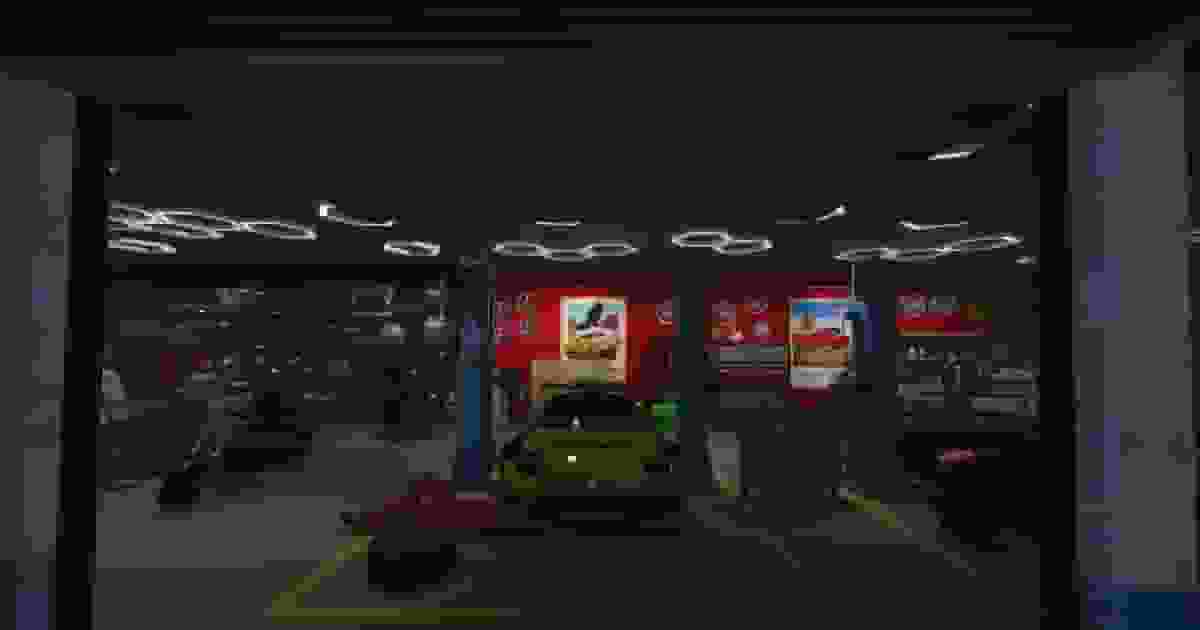
qs_downtown_mechanicThe Mechanic Interior Does Not Appear#
If the workshop is missing:
Check that:
The resource started successfully.
The
streamfolder is inside the resource.No files were removed from the package.
The player reconnects after the first installation.
MLO resources require a fresh client connection to download new streaming assets correctly.
The /mechanicmap Command Does Not Work#
If the command returns an access error:
Verify that you added the ACE permission:
add_ace group.admin command.mechanicmap allowThe command is restricted and requires administrator permissions when executed from the in-game chat.
The server console and txAdmin can execute the command without ACE permissions.
Event Layers Do Not Load#
If:
/mechanicmap 1or:
/mechanicmap 2does not display the extra decorations:
Verify that:
The resource is running the latest version.
The player has received the updated map state.
No duplicate resource exists with the same name.
Client cache has been cleared if the issue persists.
Food Layer Does Not Appear#
The food layer cannot be loaded independently.
Correct:
/mechanicmap 2Incorrect:
/mechanicmap foodThe food decoration requires the event layer to be active first.
Map State Resets After Restart#
If the workshop returns to the default layout:
Check:
map_state.jsonThe resource stores the active map state in this file.
Verify that:
The server has permission to write files.
The file exists.
No automatic deployment system overwrites it.
Props Are Missing Or Invisible#
If custom mechanic props do not appear:
Verify that the resource contains the complete stream folder.
Required assets include:
qs_custom_car_lift_01
qs_custom_carcreeper_01
qs_custom_chair_01
qs_custom_desk_01
qs_custom_sofa_01
qs_custom_tool_draw_01
qs_custom_wheel_bal_01
qs_custom_wheel_rack_01
Missing streamed assets will cause invisible objects.
Collision Problems#
If players fall through the floor or walk through objects:
Verify that:
The collision files are present.
The resource loaded correctly.
Another map resource is not replacing the same GTA assets.
A client cache cleanup may also be required after replacing map files.
Conflicts With Other MLOs#
If another interior appears inside the mechanic workshop or geometry overlaps:
Check if another resource modifies the same GTA area.
Quasar Downtown Mechanic replaces assets from the sc1_03 cell, so other resources modifying the same area may cause visual or collision conflicts.
Different Players See Different Layers#
If some players see the event decoration and others do not:
Restart synchronization by executing:
mechanicmap 0and then:
mechanicmap 1This forces the current state to be saved and synchronized with all connected clients.