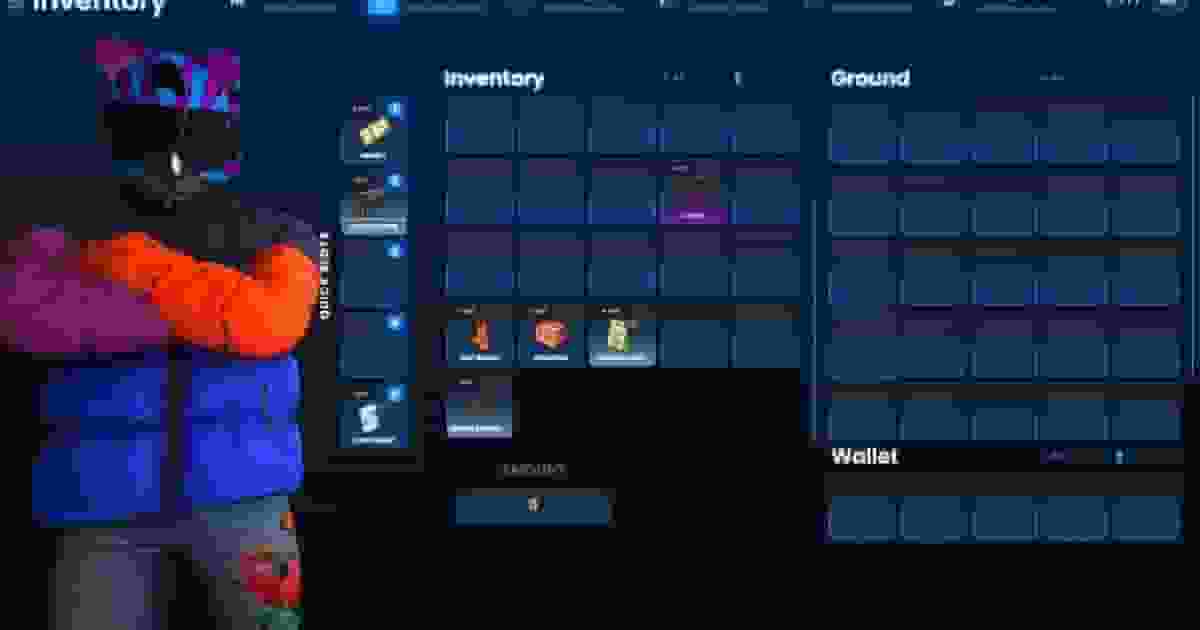
Installation guide — please follow each step carefully and exactly as described to ensure the script works correctly on your server. Skipping or modifying steps may cause the system to not function properly, so follow it step by step.
This script requires some mandatory dependencies to function correctly. Make sure to download and extract them inside your server’s main directory, keeping their original folder structure intact.
This script requires specific framework modifications to work properly with ESX, QB or QBOX. You can either apply the provided commits manually or, for a faster and safer setup, download our pre-edited framework versions directly from the links below:
This script may cause conflicts or errors if you use other inventory systems on your server. Common examples include esx_inventory, esx_shops, esx_weaponshop, qb-inventory, qb-shops, qb-weapons or other similar inventory scripts. It’s strongly recommended to remove them completely before installation to prevent compatibility or functionality issues.
The inventory script must always start immediately after es_extended or qb-core, never before. Make sure to place it directly below them in your server.cfg, ensuring all core dependencies are fully loaded first to avoid potential errors or malfunctioning features.
This script includes an essential database required for its operation.You must import it before starting your server, preferably using HeidiSQL or any other manager compatible with MariaDB/MySQL.
ESX
sql
UPDATE `users` SET `inventory` ='[]'WHERE identifier ISNOT NULL;
ALTER TABLE `users` ADD IF NOTEXISTS `metadata` mediumtext DEFAULTNULL;
ALTER TABLE `users` ADD IF NOTEXISTS `inventory_skill` TEXT NULLDEFAULTNULL;
DROPTABLE IF EXISTS `inventory_glovebox`;
CREATE TABLE IF NOTEXISTS `inventory_glovebox` (
`id` int(11) NOT NULL AUTO_INCREMENT,
`plate` varchar(255) DEFAULTNULL,
`items` longtext CHARACTER SET utf8mb4 COLLATE utf8mb4_bin DEFAULTNULL,
PRIMARY KEY (`plate`),
KEY `id` (`id`)
) ENGINE = InnoDB AUTO_INCREMENT =1DEFAULT CHARSET = latin1;
DROPTABLE IF EXISTS `inventory_stash`;
CREATE TABLE IF NOTEXISTS `inventory_stash` (
`id` int(11) NOT NULL AUTO_INCREMENT,
`stash` varchar(255) DEFAULTNULL,
`items` longtext CHARACTER SET utf8mb4 COLLATE utf8mb4_bin DEFAULTNULL,
PRIMARY KEY (`stash`),
KEY `id` (`id`)
) ENGINE = InnoDB AUTO_INCREMENT =1DEFAULT CHARSET = latin1;
DROPTABLE IF EXISTS `inventory_trunk`;
CREATE TABLE IF NOTEXISTS `inventory_trunk` (
`id` int(11) NOT NULL AUTO_INCREMENT,
`plate` varchar(255) DEFAULTNULL,
`items` longtext CHARACTER SET utf8mb4 COLLATE utf8mb4_bin DEFAULTNULL,
PRIMARY KEY (`plate`),
KEY `id` (`id`)
) ENGINE = InnoDB AUTO_INCREMENT =1DEFAULT CHARSET = latin1;
DROPTABLE IF EXISTS `inventory_metadata`;
CREATE TABLE IF NOTEXISTS `inventory_metadata` (
`id` INT(11) NOT NULL AUTO_INCREMENT,
`identifier` VARCHAR(50) NULLDEFAULTNULLCOLLATE'utf8mb4_unicode_ci',
`data` TEXT NULLDEFAULTNULLCOLLATE'utf8mb4_unicode_ci',
PRIMARY KEY (`id`) USING BTREE
) COLLATE='utf8mb4_unicode_ci' ENGINE = InnoDB;
DROPTABLE IF EXISTS `inventory_clothes`;
CREATE TABLE IF NOTEXISTS `inventory_clothes` (
`id` INT(11) NOT NULL AUTO_INCREMENT,
`identifier` VARCHAR(50) NOT NULLDEFAULT''COLLATE'utf8mb4_general_ci',
`items` TEXT NULLDEFAULTNULLCOLLATE'utf8mb4_general_ci',
PRIMARY KEY (`identifier`) USING BTREE,
INDEX `id` (`id`) USING BTREE
) COLLATE='utf8mb4_general_ci' ENGINE = InnoDB AUTO_INCREMENT =6;
DROPTABLE IF EXISTS `inventory_quests`;
CREATE TABLE `inventory_quests` (
`id` INT(11) NOT NULL AUTO_INCREMENT,
`name` VARCHAR(50) NOT NULLDEFAULT'0'COLLATE'utf8mb3_general_ci',
`owner` VARCHAR(80) NOT NULLDEFAULT'0'COLLATE'utf8mb3_general_ci',
`title` VARCHAR(80) NOT NULLDEFAULT'0'COLLATE'utf8mb3_general_ci',
`description` MEDIUMTEXT NOT NULLCOLLATE'utf8mb3_general_ci',
`reward` INT(11) NOT NULLDEFAULT'0',
`requiredLevel` INT(11) NOT NULLDEFAULT'0',
`default` TINYINT(1) NOT NULLDEFAULT'0',
`status` VARCHAR(50) NOT NULLDEFAULT'active'COLLATE'utf8mb3_general_ci',
`progress` INT(11) NOT NULLDEFAULT'0',
PRIMARY KEY (`id`) USING BTREE,
UNIQUE INDEX `name_owner` (`name`, `owner`) USING BTREE
)
COLLATE='utf8mb3_general_ci'
ENGINE=InnoDB
AUTO_INCREMENT=1
;
ALTER TABLE users ADDCOLUMN IF NOTEXISTS unlocked_skills LONGTEXT NULL;
QB
sql
ALTER TABLE `players` ADD IF NOTEXISTS `inventory_skill` TEXT NULLDEFAULTNULL;
DROPTABLE IF EXISTS `inventory_glovebox`;
CREATE TABLE IF NOTEXISTS `inventory_glovebox` (
`id` int(11) NOT NULL AUTO_INCREMENT,
`plate` varchar(255) DEFAULTNULL,
`items` longtext CHARACTER SET utf8mb4 COLLATE utf8mb4_bin DEFAULTNULL,
PRIMARY KEY (`plate`),
KEY `id` (`id`)
) ENGINE = InnoDB AUTO_INCREMENT =1DEFAULT CHARSET = latin1;
DROPTABLE IF EXISTS `inventory_stash`;
CREATE TABLE IF NOTEXISTS `inventory_stash` (
`id` int(11) NOT NULL AUTO_INCREMENT,
`stash` varchar(255) DEFAULTNULL,
`items` longtext CHARACTER SET utf8mb4 COLLATE utf8mb4_bin DEFAULTNULL,
PRIMARY KEY (`stash`),
KEY `id` (`id`)
) ENGINE = InnoDB AUTO_INCREMENT =1DEFAULT CHARSET = latin1;
DROPTABLE IF EXISTS `inventory_trunk`;
CREATE TABLE IF NOTEXISTS `inventory_trunk` (
`id` int(11) NOT NULL AUTO_INCREMENT,
`plate` varchar(255) DEFAULTNULL,
`items` longtext CHARACTER SET utf8mb4 COLLATE utf8mb4_bin DEFAULTNULL,
PRIMARY KEY (`plate`),
KEY `id` (`id`)
) ENGINE = InnoDB AUTO_INCREMENT =1DEFAULT CHARSET = latin1;
DROPTABLE IF EXISTS `inventory_metadata`;
CREATE TABLE IF NOTEXISTS `inventory_metadata` (
`id` INT(11) NOT NULL AUTO_INCREMENT,
`identifier` VARCHAR(50) NULLDEFAULTNULLCOLLATE'utf8mb4_unicode_ci',
`data` TEXT NULLDEFAULTNULLCOLLATE'utf8mb4_unicode_ci',
PRIMARY KEY (`id`) USING BTREE
) COLLATE='utf8mb4_unicode_ci' ENGINE = InnoDB;
DROPTABLE IF EXISTS `inventory_clothes`;
CREATE TABLE IF NOTEXISTS `inventory_clothes` (
`id` INT(11) NOT NULL AUTO_INCREMENT,
`identifier` VARCHAR(50) NOT NULLDEFAULT''COLLATE'utf8mb4_general_ci',
`items` TEXT NULLDEFAULTNULLCOLLATE'utf8mb4_general_ci',
PRIMARY KEY (`identifier`) USING BTREE,
INDEX `id` (`id`) USING BTREE
) COLLATE='utf8mb4_general_ci' ENGINE = InnoDB AUTO_INCREMENT =6;
DROPTABLE IF EXISTS `inventory_quests`;
CREATE TABLE `inventory_quests` (
`id` INT(11) NOT NULL AUTO_INCREMENT,
`name` VARCHAR(50) NOT NULLDEFAULT'0'COLLATE'utf8mb3_general_ci',
`owner` VARCHAR(80) NOT NULLDEFAULT'0'COLLATE'utf8mb3_general_ci',
`title` VARCHAR(80) NOT NULLDEFAULT'0'COLLATE'utf8mb3_general_ci',
`description` MEDIUMTEXT NOT NULLCOLLATE'utf8mb3_general_ci',
`reward` INT(11) NOT NULLDEFAULT'0',
`requiredLevel` INT(11) NOT NULLDEFAULT'0',
`default` TINYINT(1) NOT NULLDEFAULT'0',
`status` VARCHAR(50) NOT NULLDEFAULT'active'COLLATE'utf8mb3_general_ci',
`progress` INT(11) NOT NULLDEFAULT'0',
PRIMARY KEY (`id`) USING BTREE,
UNIQUE INDEX `name_owner` (`name`, `owner`) USING BTREE
)
COLLATE='utf8mb3_general_ci'
ENGINE=InnoDB
AUTO_INCREMENT=1
;
ALTER TABLE players ADDCOLUMN IF NOTEXISTS unlocked_skills LONGTEXT NULL;
This step is very important and should not be skipped. It explains how to add, edit, or delete items correctly depending on your framework. In Quasar scripts, items are not managed with SQL databases. Instead, they are stored directly in configuration files, making it easier to organize and modify them without using any external tools.
ESX – Add items to qs-inventory
If you are using ESX, you must add the required items in qs-inventory/shared/items.lua.
QB – Add items to qb-core
If you are using QB, you must add the required items in qb-core/shared/items.lua.
To ensure the clothing system works fully (without flooding your store with unnecessary items), read the Features Guide after finishing this documentation. It explains how to add the required exports to your clothing shop for seamless integration.
Clothing system options (config.lua):
Config.Clothing
Enable/disable the clothing system (disables the button too when off).
Config.EnableScreenPed
Show the preview ped on screen instead of the zoom pad.
Config.TakePreviousClothes
Decide whether previous clothes go to the inventory or are removed.
Clothing Items (if you use ESX it already comes by default)