


Before You Begin#
Quasar Loading Screen Creator has no requirements at all. No ox_lib, no oxmysql, no database, no framework.
A loading screen has to draw before anything else, so it depends on nothing.
Requirement | Status | Notes |
|---|---|---|
| Not needed | — |
|

Documentation
Everything you need to get Quasar Loading Screen Creator running: no database, no dependencies, and three steps to your first screen.
Quasar Loading Screen Creator has no requirements at all. No ox_lib, no oxmysql, no database, no framework.
A loading screen has to draw before anything else, so it depends on nothing.
Requirement | Status | Notes |
|---|---|---|
| Not needed | — |
|
— |
Database | Not needed | Themes are stored in the resource |
Framework | Optional | ESX, QB-Core or qs-core — also runs standalone |
The framework is only ever asked two things: whether someone is an admin, and how to show them a notification. Everything else works without one.
Quasar Loading Screen Creator is linked to your CFX Portal account.
Sign in to the CFX Portal using the same account used during checkout, then open Granted Assets and locate Loading Screen Creator in your asset library. Download the latest version and extract the archive.
After extracting the download, you should have the following folder:
qs-loadingscreenNever rename the resource folder. It must remain qs-loadingscreen — your media is served from cfx-nui-qs-loadingscreen/, so a rename breaks every image, video and song path in your themes.
Move the qs-loadingscreen folder into your server's resources directory. Although the resource can be placed anywhere inside the folder, keeping Quasar resources organized inside their own directory is recommended.
A typical installation looks like this:
resources/
└── [quasar]/
    └── qs-loadingscreen/
Then add it to your server.cfg:
ensure qs-loadingscreenStart it early. A loading screen has to draw before everything else, so put it near the top of your
server.cfg— it has no dependencies to wait for.
No SQL import is required. Quasar Loading Screen Creator uses no database at all.
What | Where it lives |
|---|---|
The three built-in themes | Inside the interface, so the screen draws correctly before it has talked to anyone |
The themes you create |
|
The last theme a player saw | Cached on their client, so a custom theme never flashes on join |
The creator uses the command.loadingcreator ACE. Add it to your server.cfg:
add_ace group.admin command.loadingcreator allowIf you run ESX or QB-Core, the groups listed in Config.Creator.adminGroups also work as permission.
Drop your own files into the media folders and they show up in the creator — nobody has to type a path.
Folder | For |
|---|---|
| Soundtrack files (mp3, ogg, wav, m4a) |
Image folder | Backgrounds, logos, carousel images |
Video folder | Background clips (WebM / VP9 only) |
Video must be WebM (VP9). FiveM's browser ships without the H.264 licence, so an
.mp4will not play.
There is no YouTube integration. An embed will not start from a
cfx-nui-*origin, so it would never play in game.
After completing the installation, restart your FiveM server and reconnect.
If you see a loading screen that isn't the default FiveM one, the install is done.
Then, with an administrator account, run:
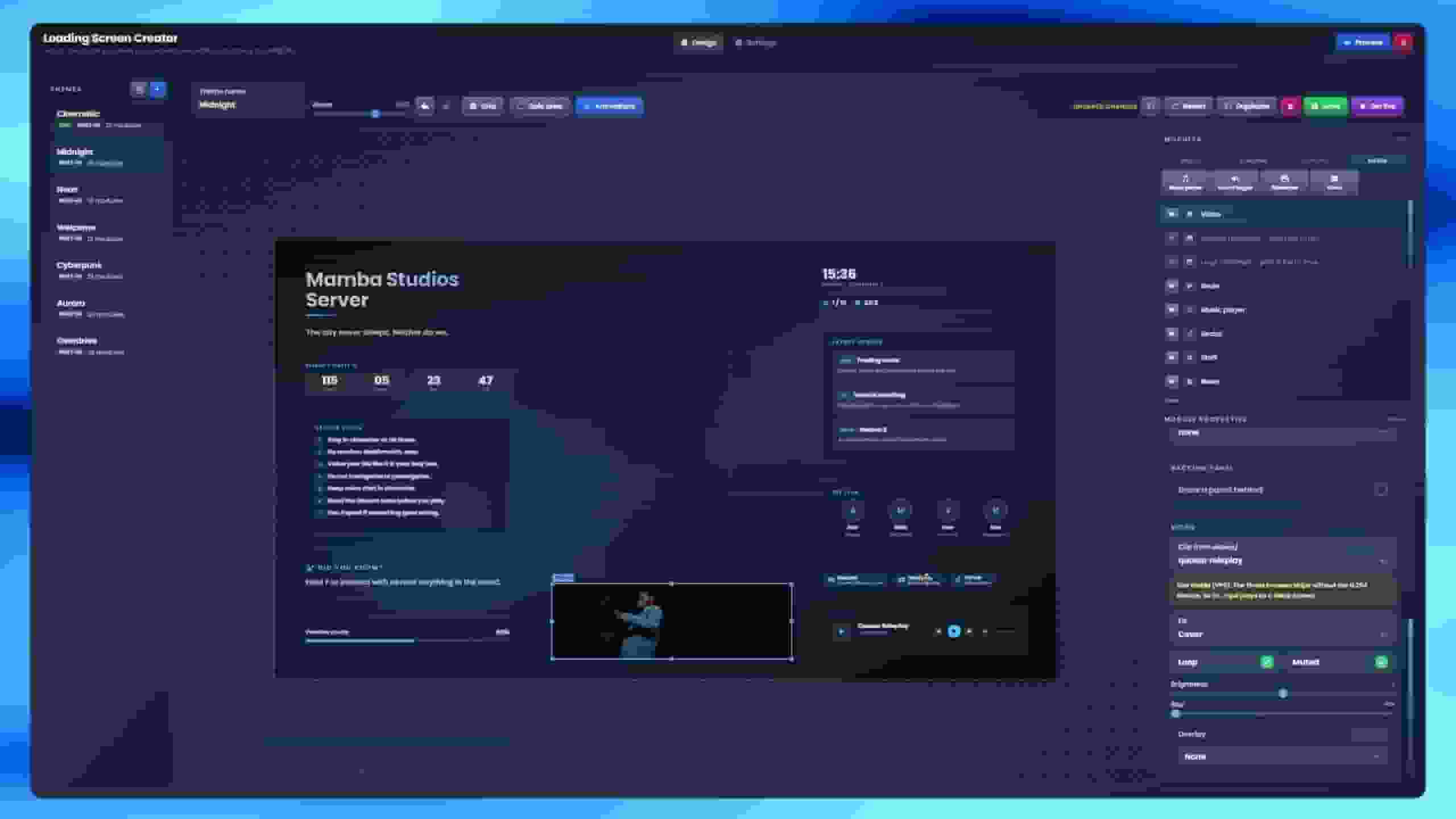
/loadingcreatorIf the editor opens, Quasar Loading Screen Creator has been installed correctly. Design your screen on the canvas, hit Go live, and the next player who joins already sees it — no resource restart, no config file to touch.