Usage — How to Build Shells In-Game with Shell Creator | Quasar Store | Quasar Store
Documentation
Usage
Full guide to the FiveM Shell Creator builder: foundations, walls, doors, windows, multi-floor stairs, roofs, furniture, colours, spawn point, preview, saving and the shell manager.
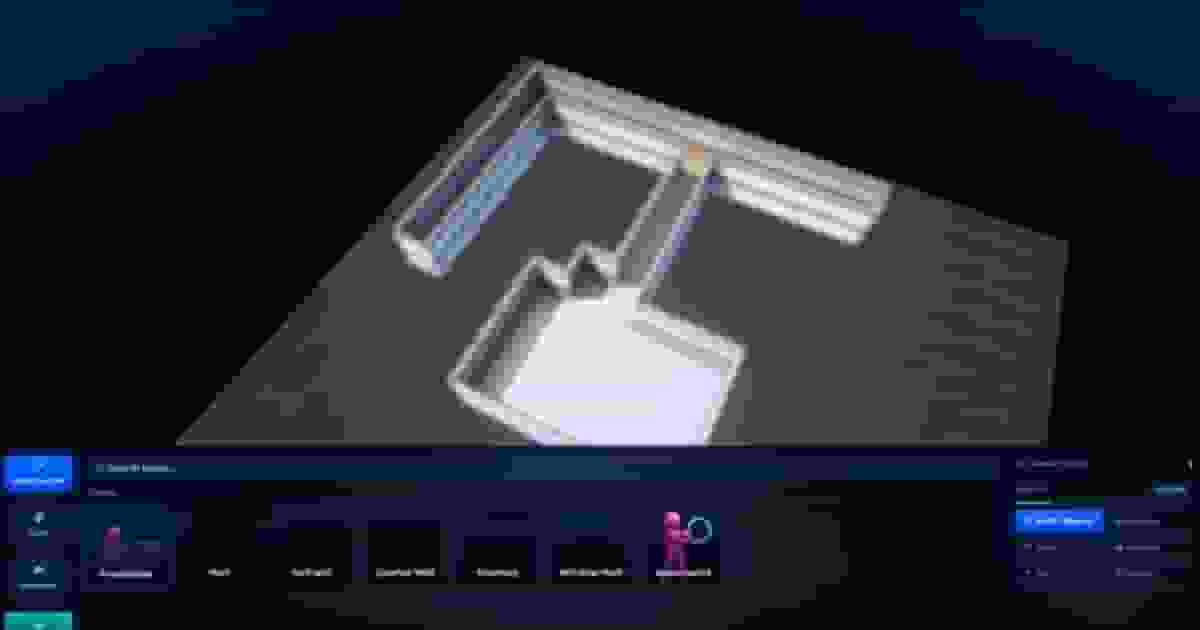
Pressing create (or Edit Build) hides your character and the HUD, freezes the weather at a clear noon, and flies the camera to the builder's workspace: a 25 × 25 tile grid floating high above the airport, inside a dark void. Your position is remembered and you are put back there when you leave.
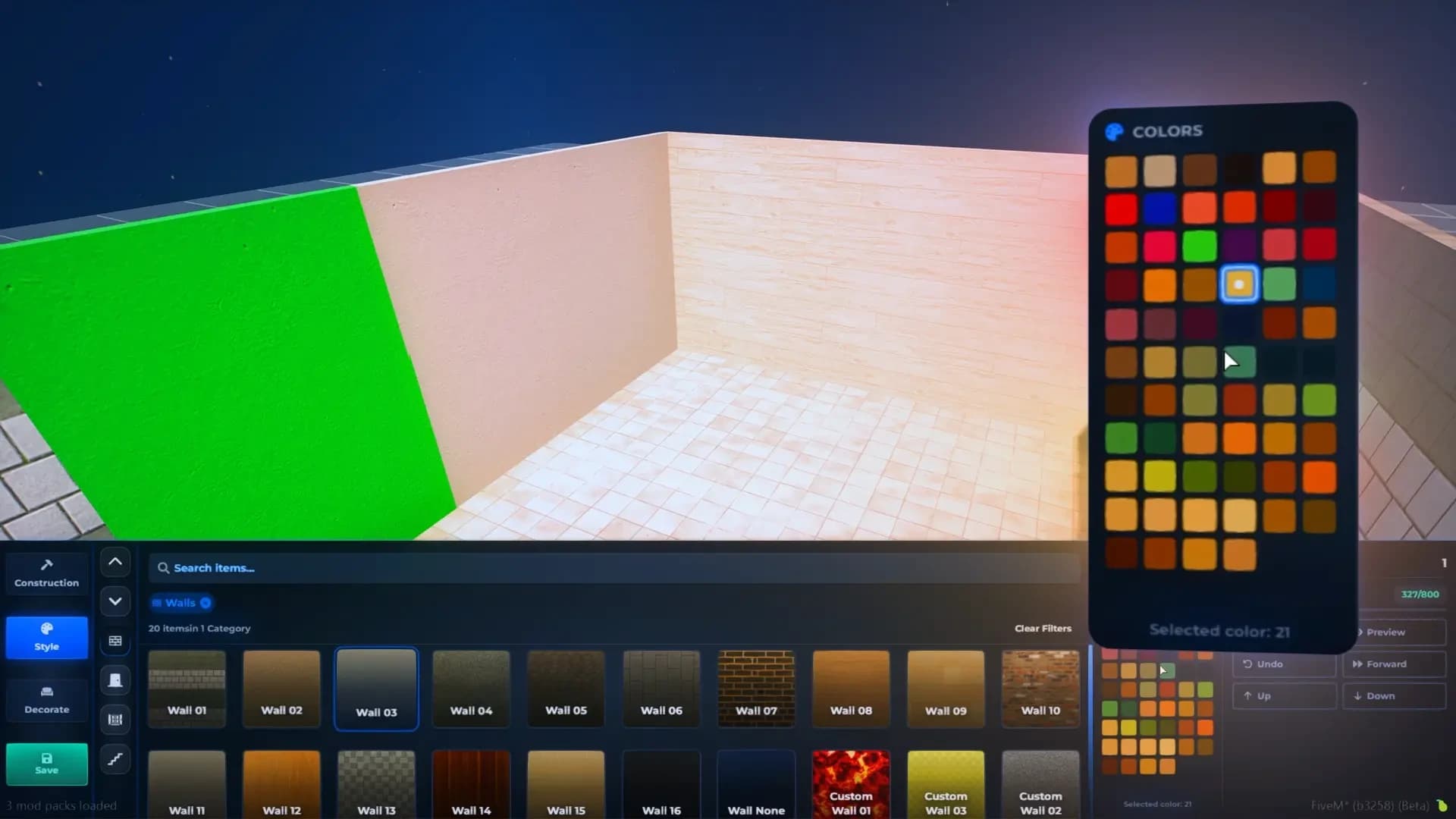
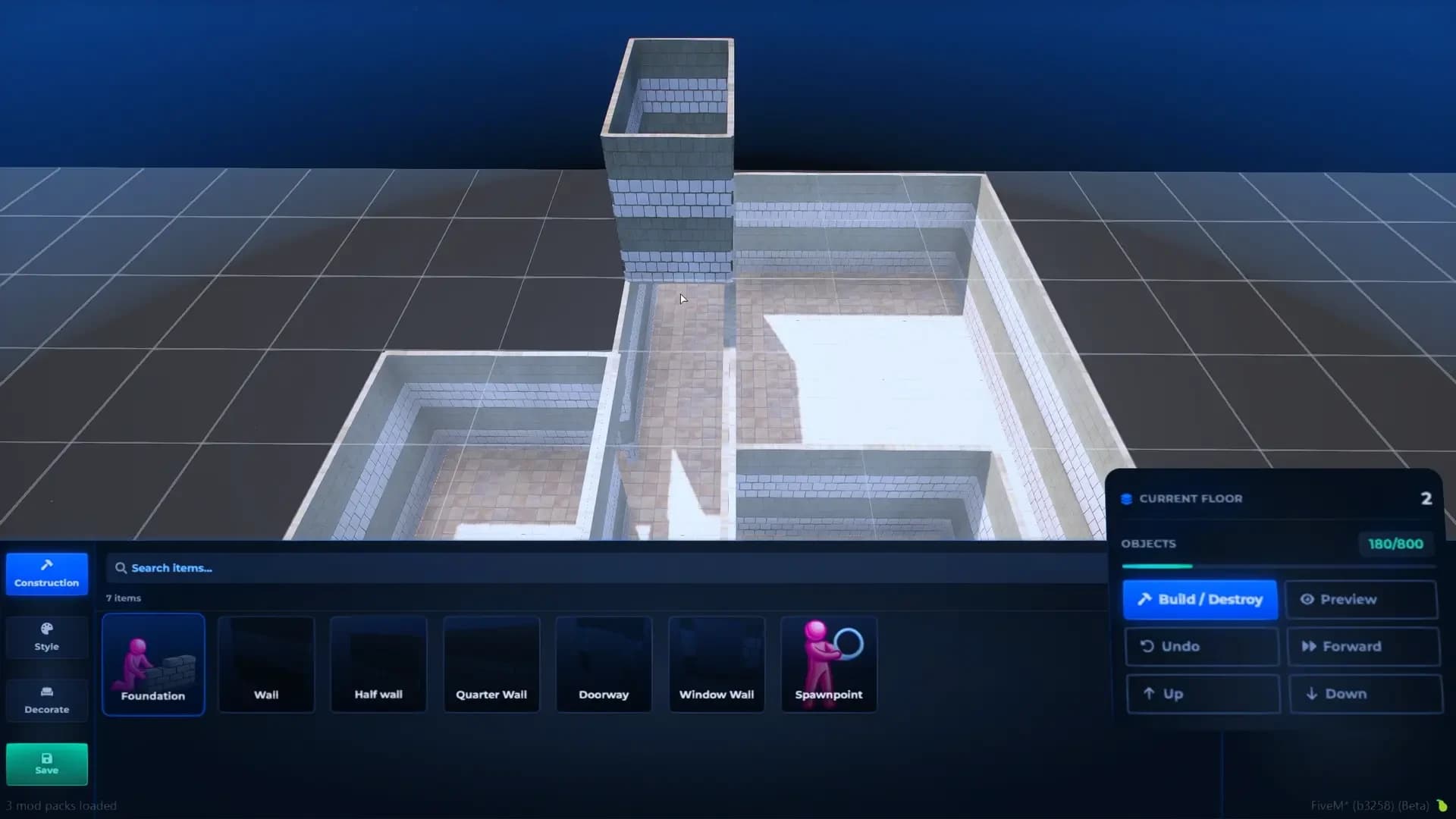
The panel along the bottom of the screen is laid out in three columns:
Where
What is there
Left
The three modes — Construction, Style and Decorate — and the green Save button.
Middle
The items of the current mode with a picture each, a search box and category filters. When the item can be tinted, a palette of 64 colours appears beside it.
Right
The floor you are on, the object counter, and the buttons Build / Destroy, Preview, Undo, Forward (redo), Up and Down.
The tool that is selected decides what a click does, and the Build / Destroy toggle decides whether it adds or removes. Clicking the selected item again deselects it and the tool returns to Foundation.
Pan the camera over the grid, in the direction it faces.
Right mouse + move
Orbit around the build.
Mouse wheel
Zoom in and out.
Left click
Place or remove the selected item, depending on Build / Destroy.
Hold left click + drag
Rapid placement: keeps placing, removing or repainting on every tile the cursor passes over. Ideal for laying a whole floor or painting a whole room.
Z / X
Rotate right / left while held. Only for furniture and the spawn point.
Hold G (2 s)
Leave Preview and return to the builder.
Esc
Open the exit dialog: leave without saving, or go to the save dialog.
The outline under the cursor tells you what will happen before you click: blue a tile that will be built, green a valid position, red something that will be deleted or a blocked spot, light blue a wall that will be repainted, orange a roof, and purple stairs or furniture.
Undo and Forward keep the last 100 actions — foundations, walls, doors, windows, paint, furniture and the spawn point — and jump to the floor where each one happened. Doing something new clears the Forward list.
The structure of the interior. Everything in this mode snaps to the grid.
Piece
What it does
Foundation
A floor tile. Its outer walls build themselves on every side that has no neighbouring tile, and are rebuilt as you add or remove tiles next to it — so drawing a rectangle of foundations gives you a closed room. To delete one in Destroy mode, click the floor, not the wall.
Wall
A full-height interior wall on the edge of a tile, to split a space into rooms.
Half wall · Quarter wall
Lower dividers for counters, railings and open-plan kitchens.
Doorway
An interior wall with an opening, with or without a door in it.
Window wall
An interior wall with a window-sized hole.
Spawnpoint
Where players appear when they enter the shell — see below.
Interior pieces go on the edge of a tile nearest the cursor; a see-through preview shows the side before you click. They need a foundation under them and cannot stand where an outer wall already is. If the tile on the other side is also a foundation, a matching face is added there too, so the wall looks finished from both rooms — and deleting one side deletes both.
A ghost copy of your character that marks the entrance: where a resident appears on entering, which way they face, and the point every export measures the door from. A shell cannot be previewed or saved without one.
It must stand on a foundation. Turn it with Z / X before clicking.
There is only one. Placing another moves it — the orange outline warns you it will replace the old one.
Put it just inside the front door, facing into the room: housing scripts use this spot as the exit marker too.
Finishes and fittings, in six categories. Most of them can be tinted with the colour palette: pick a colour, then click.
Category
Included
How it is applied
Floors
22 + Floor None
Click or drag over existing foundations. An empty tile flashes red.
Walls
16 + Wall None
Click or drag over any wall, outer or interior. Half walls, doorways and window walls keep their shape and only change finish.
Roofs
22
Shows the ceiling of the current floor so you can click each tile. Needs a foundation on the floor you are on.
Doors
7
Click a wall or doorway: a plain wall becomes a doorway in the same finish with the door fitted. Click an existing door to swap the model.
Windows
3
Click a wall: it is cut open on both faces and the window frame fitted.
Stairs
3
See Floors and Stairs below.
Floor None and Wall None make that surface invisible — useful for a terrace open to the void, or to let a decoration piece stand in for a wall.
One door per tile: adding a door removes any other door on the same tile and any door facing it from the next tile. A wall cannot hold a door and a window at once — remove one before adding the other.
In Destroy mode, a door turns its doorway back into a plain wall, and a window closes its hole.
Choosing a Style item preselects the first colour of the palette; pick another before clicking if you want a tint.
Your own textures appear at the end of the floor, wall and roof lists as Custom Floor 01, Custom Wall 01, Custom Roof 01 — see Custom Textures.
You never have to place a roof by hand. When you preview or save, every tile without a floor above it gets a roof — the one you painted, or the first finish in the list.
Up and Down move the builder between floors. Each floor sits exactly one wall height above the last, and the floors above the one you are on are hidden so you can work inside.
Build the ground floor
Lay its foundations first. You can only go up from a floor that has foundations.
Go up and build the upper floor
Press Up and lay the foundations of the next floor, at least over where the stairs will arrive. A floor you leave with no foundations is discarded.
Go back down and place the stairs
Press Down, open Style → Stairs and click a tile. The stairs take that tile and the one behind it — the direction follows the cursor — and both must be foundations. The floor above is cut open over them automatically, with no roof in the way.
Clicking existing stairs with another model swaps it; the same model with another colour repaints it.
FiveM Shell Creator multi-floor interior with stairs between two levels
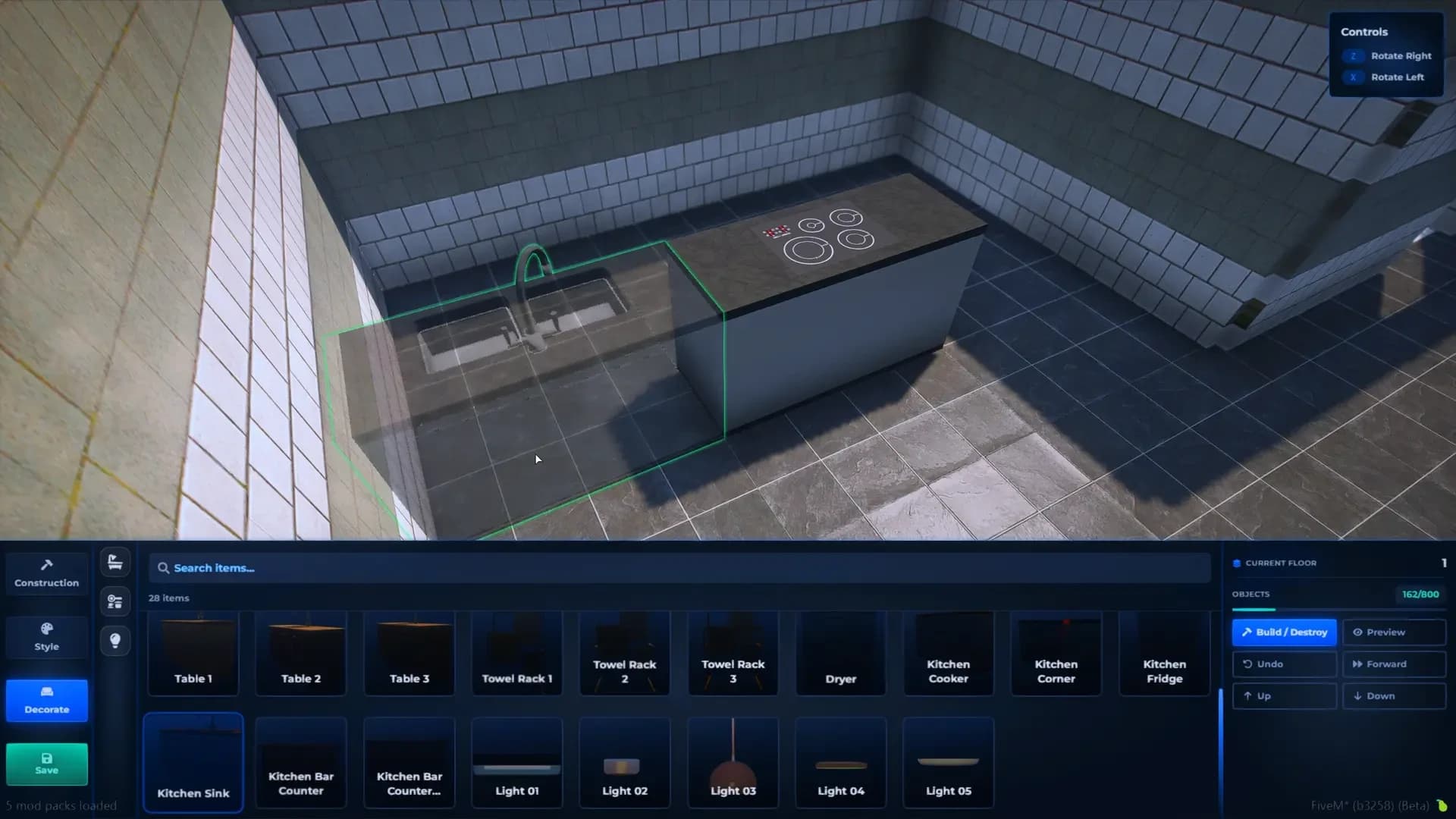
The custom props that come with the pack, filtered into Bathroom, Kitchen and Lights: toilets, sinks, bathtub, towel racks, washer and dryer, carpets, tables, a bar counter, cookers, fridges, kitchen corners and ceiling lights.
Placement
How it behaves
Free
Placed exactly under the cursor and dropped onto the floor. Turn it with Z / X before clicking.
Against a wall
Snaps to the nearest edge of the tile and faces into the room on its own. One per edge.
Centred
Snaps to the middle of the tile — every ceiling light works this way. One per tile.
Lights take the colour selected in the palette. Click an existing light with a colour selected to recolour it rather than add a second one. In Destroy mode, the decoration nearest the cursor is removed.
Which props appear, in which category and with which behaviour is set in Config.Objects.furniture — see The Builder Catalogue below.
FiveM Shell Creator decorate mode with custom bathroom and kitchen props
Every tile is made of real props — its floor, each exposed wall, the roof — plus whatever you put on it. The counter on the right panel shows how many the build holds against Config.MaxObjects (800): green, yellow past 80%, red when full. At the limit nothing more can be placed.
The limit protects players from GTA's object pool. If some of them crash inside large shells, lower Config.MaxObjects rather than raising it.
Preview closes the interface, puts every roof in place and drops you at the spawn point on foot, with your normal controls. Walk through the rooms, climb the stairs, open the doors. Hold G for two seconds to return to the builder where you left it.
Press Save (or Esc, then save). A new shell asks for a name; an edited one keeps its own. Then:
Roofs are added and every floor is made visible.
A camera frames the whole building from above and takes the cover photo.
The server checks you are still an admin and stores the shell.
The new or updated shell is sent to every connected player at once — no restart.
Each new shell is given its own place in the world automatically, at height 800 and at least 300 m from every other shell, so two interiors never overlap.
To switch the void off for a shell, untick Has Void in the shell manager and press its Save button. Saving from the builder always stores the shell with the void on.
A saved shell is registered on every client as the model qs_shells_<id> — qs_shells_1, qs_shells_2, and so on. The interior is assembled around it on demand:
When a player comes within 100 m of the shell's own spot, it is built there.
When a housing script spawns a qs_shells_<id> object anywhere, the interior is built around that object instead, and follows it if the script moves or rotates it.
When the player is further than 100 m away, the props are removed again, so a hundred shells cost nothing to players who are not inside one.
This is why a housing script needs nothing special: it spawns the model as it would any streamed shell, and Shell Creator does the rest.
What the builder offers is listed in config/builder.lua. You can reorder, rename or remove entries, and add any GTA or streamed prop as furniture.
Table
Holds
Config.ObjectMap
Which categories appear in Style and in Decorate, and in what order.
Config.Objects.constructions
The Construction pieces.
Config.Objects.floors · roofs · walls
The finishes. Walls are listed by suffix ('01' … '16'), because each finish exists as a wall, half wall, quarter wall, doorway and window wall.
Config.Objects.doors
Door models, each with an offset that seats it in the doorway.
Config.Objects.windows · stairs
Window frames and staircases.
Config.Objects.furniture
Every decoration prop and its category.
Config.ColorVariations
The 64 colours of the palette, as hex codes.
A furniture entry looks like this:
lua
{
    label         = 'Light 02',
    model         = 'qs_custom_light_01',
    category      = 'lights',               -- bathroom · kitchen · lights, or one you add to Config.ObjectMap.decorate
    offset        = vec3(0.0, 0.0, 2.89),   -- optional: lift or shift it instead of dropping it on the floor
    colors        = true,                   -- optional: show the colour palette for it
    fixedPosition = { centered = true },    -- optional: true = against a wall edge, { centered = true } = tile centre
},
The item's picture is loaded from web/images/builder/<model>.webp (or the image name you give it). Add a picture with that name for a new prop, or its card stays empty.
Do not remove an entry that saved shells already use. Shells store the models themselves, so they keep loading — but the item will no longer be offered when you edit them.